
Permission-aware directory search
Find basic directory entries and open only currently permitted records.
For Classroom staff, SEND team
Product walkthrough · DAS Board
Bring observations, support plans and professional casework together around the pupil, with a clear route from contribution to review.
These product screens use demonstration records. Your school’s access and connections depend on its licences and setup.
Explore DAS Board
School examples and feature detail.
Area 1 of 8
DAS Board
Give colleagues a practical, current picture of the pupil: what helps in the classroom, what the pupil says and which records they are permitted to use.
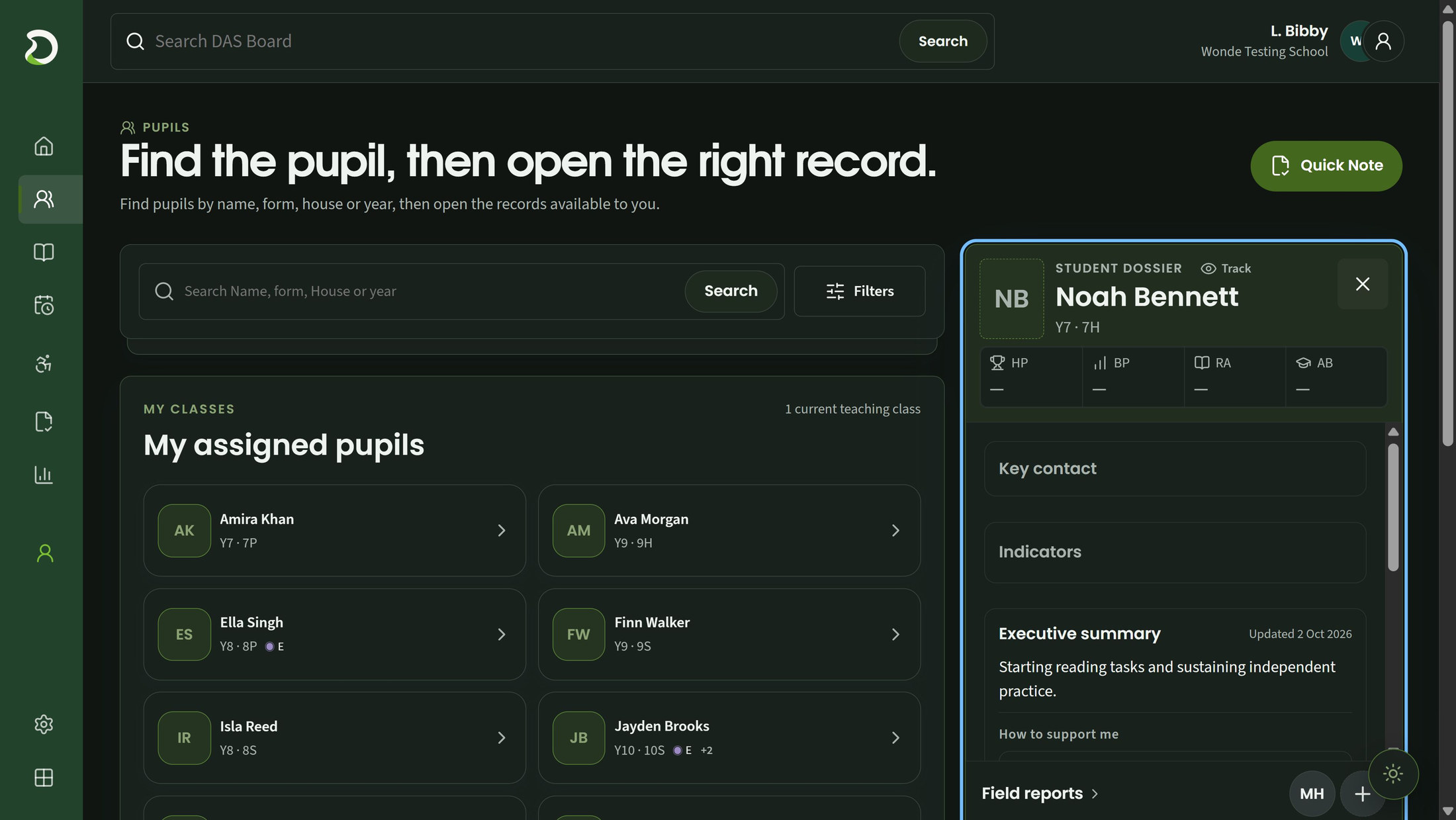
Search the school directory, then narrow your permitted dossiers by recorded need, intervention, evidence or review state. Lists and counts describe what has been recorded; access to a directory match does not open a pupil dossier or specialist record.
Bring practical strategies and support needs into a current Pupil Passport or Support Snapshot. Keep source versions available and distinguish a draft from the classroom guidance that has been reviewed and published.
Record the pupil's words as a separate contribution, with their own review and publication. Keep adult interpretation distinct from the pupil's account.
Open classroom, progress or specialist views within your current permissions. Restricted and audit material requires additional designation. Keep a verified key contact, conversation dates and agreed next steps with the permitted record; creating a contact entry does not send an email.
Pupil voice and contact entries are staff-managed. Contact records do not send messages or replace safeguarding procedures. Drafting and publication have separate permissions.
Choose a numbered marker to look closer.
Pupil and year group
Executive summary
DAS Board
Make useful observations easier to gather, find and review. Keep the lesson context, contributor and later changes visible as evidence is considered for a pupil's support.
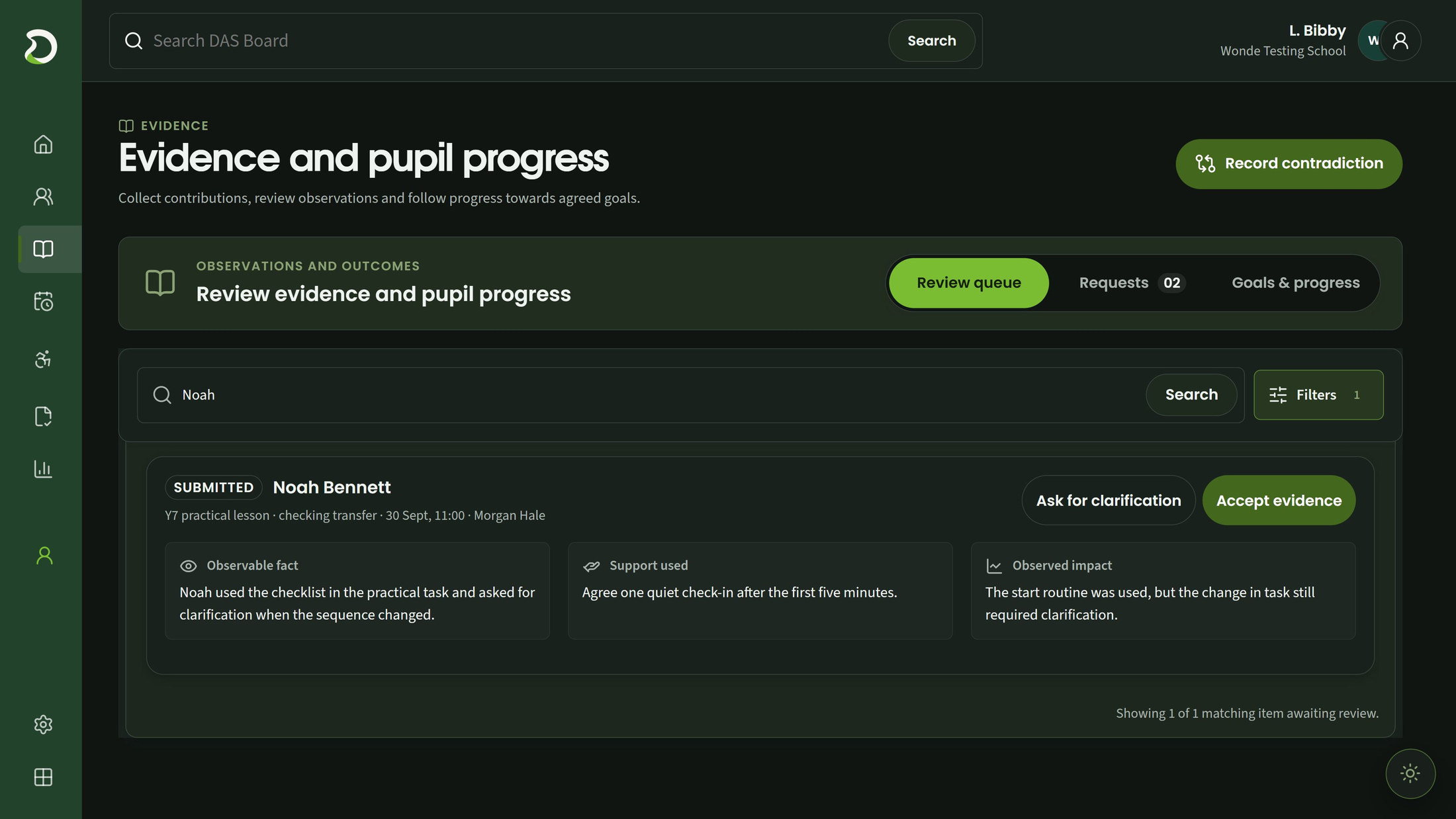
Capture the pupil, lesson context, support used and observed response using a school-approved form. Versioned prompts also support structured learning walks. Staff record what they observed; the form does not diagnose, judge eligibility or impose an evidence quota.
Choose the purpose, approved prompts, named recipients and due date. Colleagues can save drafts, submit or decline a response. See outstanding contributions and send in-app reminders, while keeping received responses separate from reviewed evidence.
A named reviewer can accept the current evidence or ask for clarification. Preserve earlier wording and reasons when a source is corrected or retracted. Changed evidence needs review again, while earlier report versions keep their own history.
Compare conflicting accepted accounts and record a professional resolution or reopening. Coverage views show recorded sources, contexts, contributors and request returns using stated definitions and dates. These counts help organise follow-up; they do not measure evidence quality, sufficiency or readiness.
Requests and reminders stay within DAS. Accepted evidence records a named professional review; it does not certify reliability, eligibility or overall sufficiency. Resolving different accounts remains a professional decision.
Choose a numbered marker to look closer.
Contributor and lesson context
Ask for clarification
Accept evidence
DAS Board
Connect classroom strategies with individual goals and a clear review cycle. Keep the agreed plan, the measures actually recorded and the sources behind a document easy to distinguish.
Build a pupil-specific draft from an approved school template. Adapt selected strategies, goals and measures from the school's libraries or original starters, retaining the version used. The school still chooses the pupil's baseline, target, dates and intended outcome.
Keep contributions attributed and preserve the published classroom plan while preparing its successor. Review the last cycle and deliberately choose what should carry forward, so the next agreed plan retains a clear relationship to the earlier one.
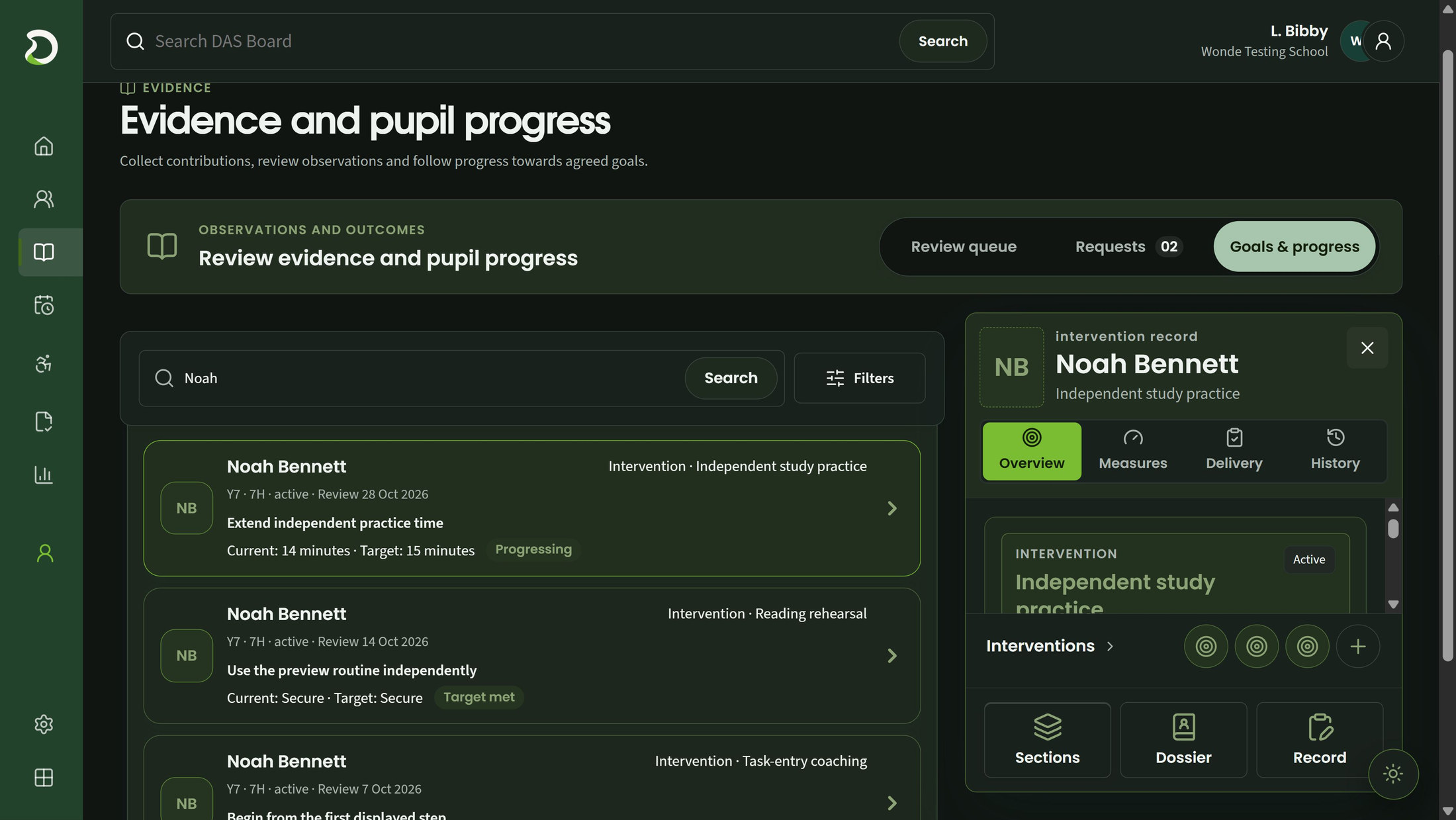
Record agreed starting points, targets and repeated school-approved measures with their evidence and corrections. Keep each result in its task context. Missing measurements remain missing; the record does not predict an outcome or diagnose a need.
Create school-branded internal PDFs from selected, personalised support-plan and Section F material, keeping the source versions used. Section F content remains a contribution to an EHCP; supplied layouts need mapping review before use.
Saving, professional review, publication and external sharing remain separate decisions. Document preparation does not issue an EHCP, provide legal approval or send a copy elsewhere.
Choose a numbered marker to look closer.
Current result and target
Linked intervention record
Record sections
DAS Board
Make the school's intervention offer easier to follow from referral and place allocation through delivery and professional review. Keep intended support, recorded activity and measured progress visible together.
Define your school's provision, intended outcomes and available capacity. Keep a clear approved version when the offer changes, so later reviews can refer to the definition in use. Approval of the offer does not establish effectiveness or a pupil's eligibility.
Record referrals and triage, manage waiting lists and reserve an available place. An authorised colleague decides suitability and priority; referral approval, a capacity reservation and creation of the pupil's placement remain separate actions.
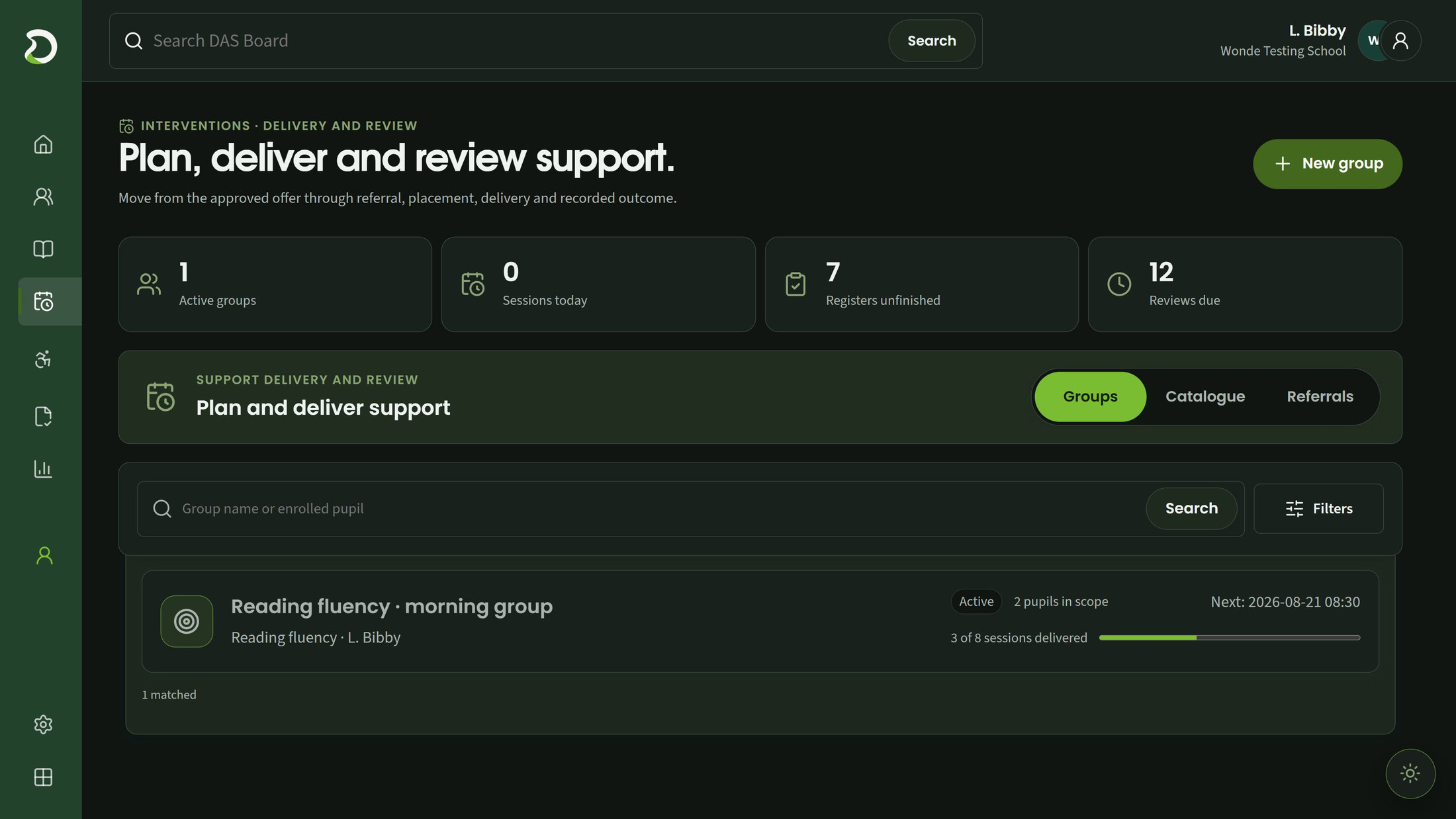
Arrange delivery series and rosters, with conflict checks against the available timetable information. Record actual delivery and participation separately from the plan. For linked enrolments, PASSport owns attendance recording; these operational marks are not statutory attendance.
Review a pupil's placement using recorded goals, delivery, measurements and accepted evidence. A professional records the conclusion and prepares the intervention report, keeping the context behind that decision available.
Attendance and delivered sessions do not establish impact. Costing and staff-time allocation are outside this intervention record. Report approval, export and external issue remain distinct. Conflict checks are limited to the timetable information supplied.
Choose a numbered marker to look closer.
Work needing attention
Groups, catalogue and referrals
Recorded session delivery
DAS Board
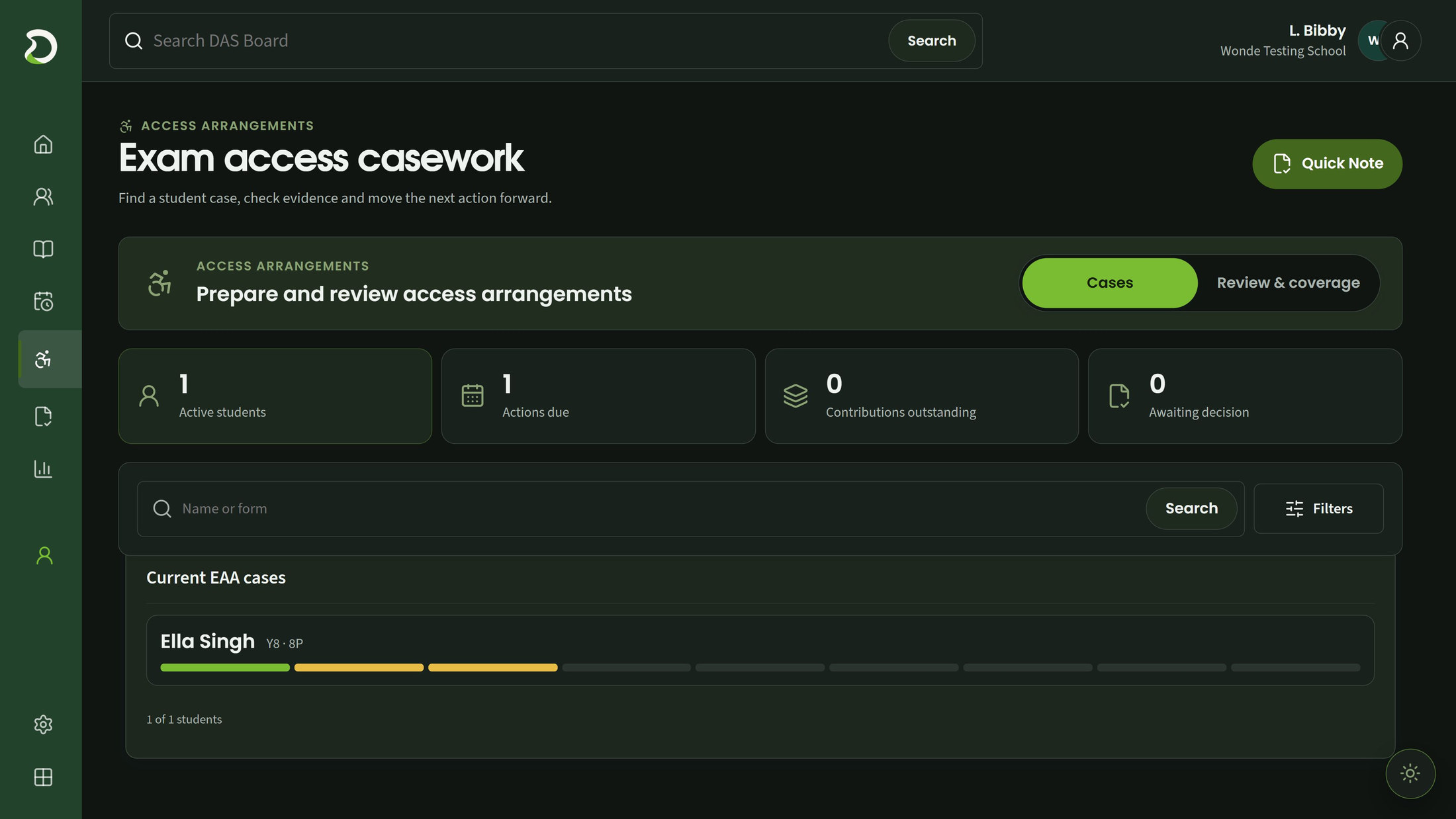
Follow the evidence, assessment, recorded decision and later implementation for each access-arrangement case. Keep the professional reasoning and relevant source material connected without turning a proposal into an approval.
Open a case under the school's confirmed settings. Link accepted evidence with a recorded explanation of its relevance, and request normal-way-of-working observations using a suitable form, selected colleagues and an agreed purpose. In-app responses need named review before they become case evidence.
Keep signed-off assessment results with the instrument edition, source and named professional. Preserve later versions without losing the earlier result. Sensitive results and files remain available only to appropriately authorised colleagues.
Record a proposal, separate approval and a later implementation review. Keep recorded review and expiry dates visible, with deliberate closure, reopening or renewal decisions and their sources. The app records these decisions; it does not select eligibility or renew an arrangement automatically.
Supported JCQ form templates help prepare case paperwork using recorded evidence and decisions. Confirm the applicable edition and school process before using a form, including Forms 8, 9 and 8RF.
Case records and forms do not certify compliance, secure examination-board acceptance or submit an application. The app does not infer eligibility thresholds or statutory deadlines. Date warnings depend on recorded school settings.
DAS Board
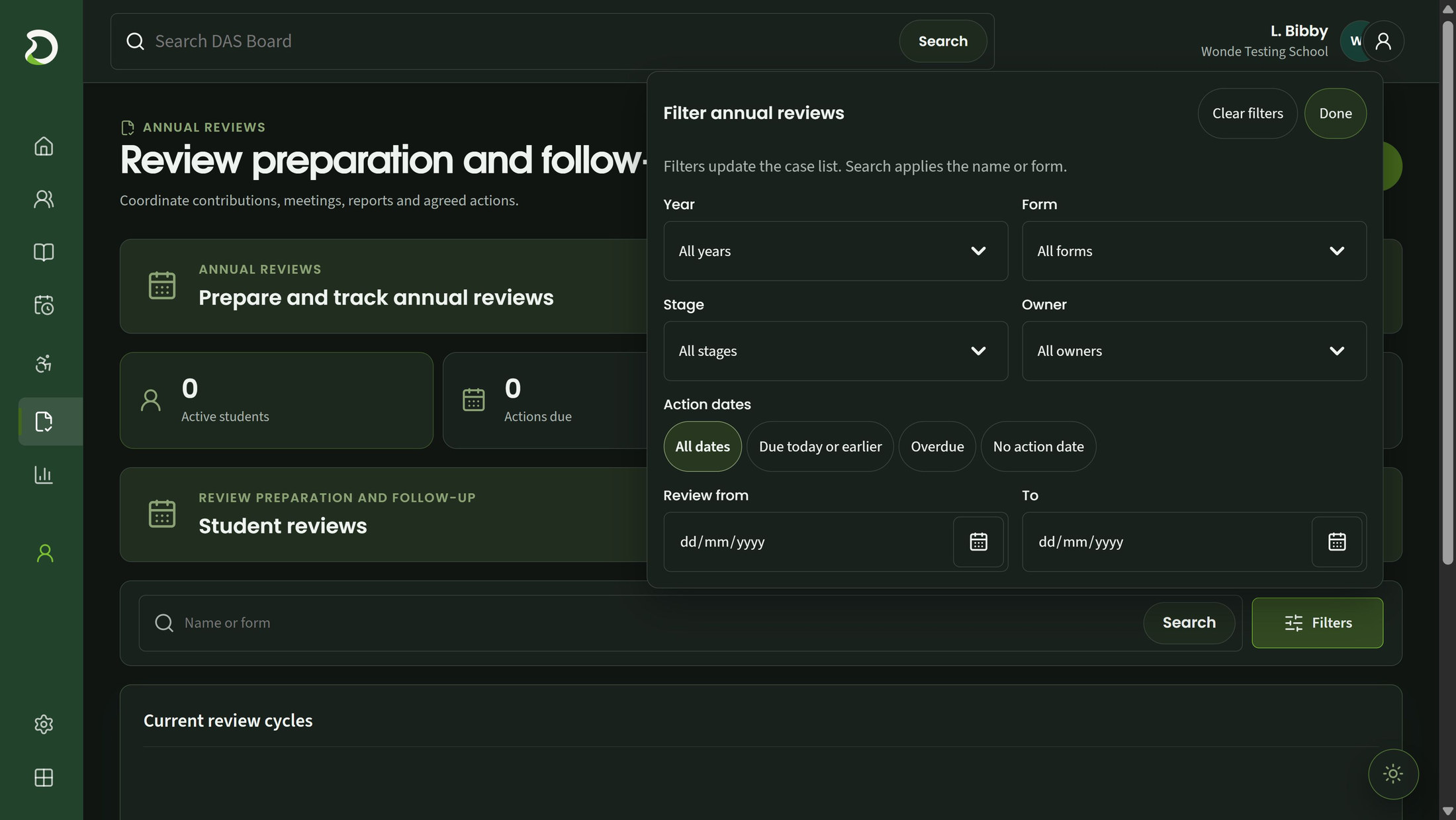
Give annual-review preparation a clear shape: a confirmed date, identifiable contributions, a useful meeting pack and owned next steps. Keep what was received, discussed and agreed easy to follow.
Record the confirmed review date and choose the school's preparation schedule. Track its milestones against that agreed date. These timings describe the school's plan; statutory deadlines and the review date remain separately confirmed.
Keep pupil, parent/carer and staff contributions separate, with named attribution, receipt states and correction history. Authorised staff manage the records, so received, missing and revised input can be understood without a parent-facing portal.
Select accepted evidence, support-plan and intervention material for a versioned meeting pack. Keep sources and their wording distinguishable from professional interpretation. A prepared pack supports the meeting; approval, final issue and sending remain separate.
Record meeting decisions and assign agreed follow-up to verified staff. Keep each action's progress visible. Report approval and final review completion remain separate steps, so a meeting record or an action update cannot finish the whole review.
Use the school's agreed processes for statutory deadlines and external issue. Action completion, report approval and final review completion remain separate responsibilities. Contributions are managed by staff; there is no automatic external delivery.
DAS Board
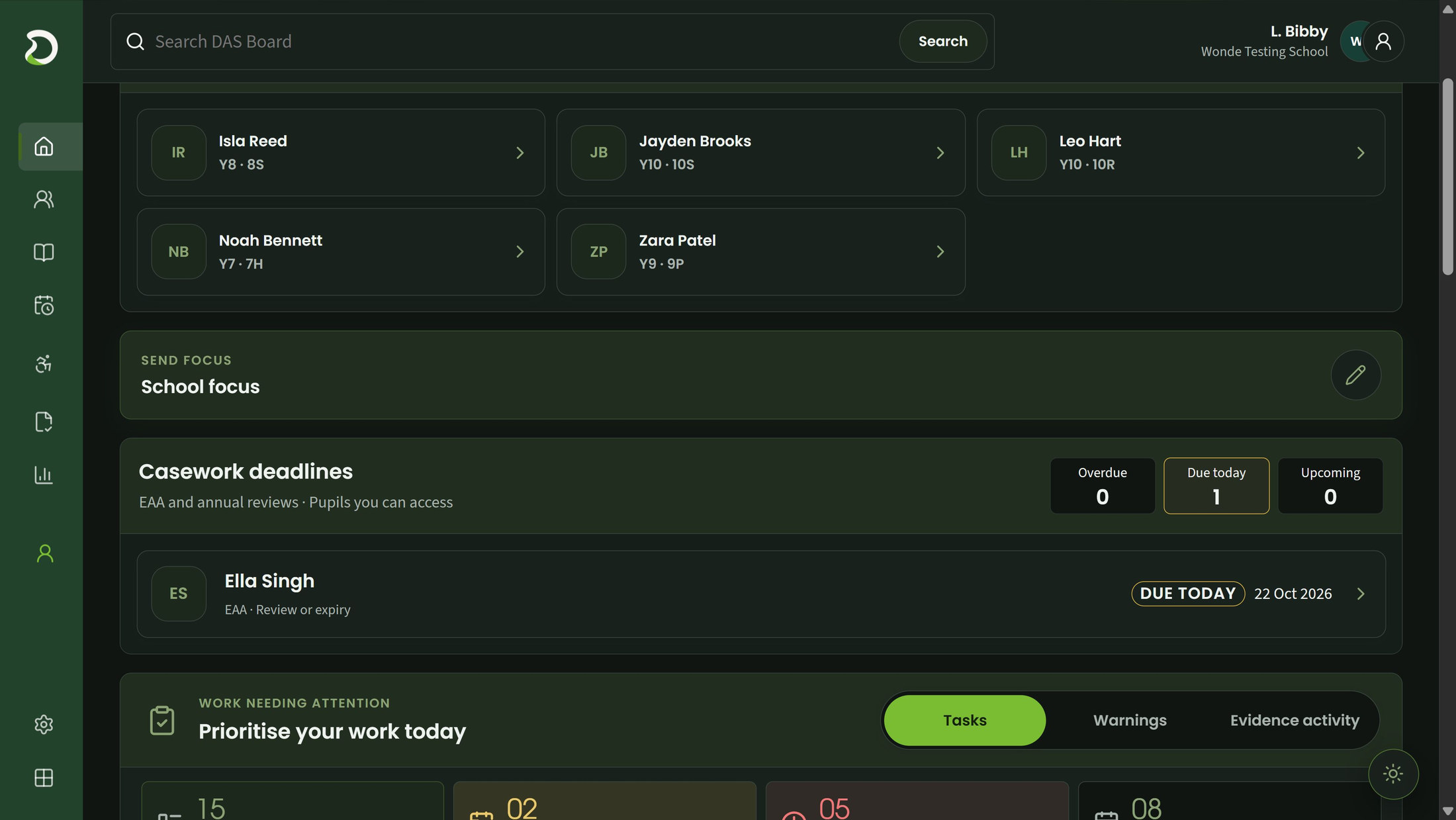
Start with the work assigned to you, then look across recorded activity when you need a wider picture. Optional calendar links keep appointment ownership clear.
WorkPane appointment delivery needs checked school setup and does not include an external-calendar connection. MIS integrations are available through Wonde with supported data and school-approved scope.
See addressed requests, returned contributions, professional review queues, owned cases and agreed actions in one permission-filtered work list. The list uses recorded dates and responsibilities so you can open the underlying work and understand why it appears.
Review progress, provision, casework and data availability using stated definitions and exclusions. Keep unavailable information visible and distinguish it from zero activity. Reports describe the recorded scope; they do not rank staff, diagnose need or assign an intervention-effectiveness score.
Where the school has both products and the configured connection, request, update or unlink permitted WorkPane-owned appointments for casework and agreed actions. Keep the appointment's status visible and check with its owner when a change needs attention. Bookings are not silently moved.
Use each report's definitions and recorded dates when interpreting its totals. Calendar requests require WorkPane access, a configured connection and current permissions. Queue dates do not infer risk or statutory deadlines.
Choose a numbered marker to look closer.
Recorded casework date
Tasks, warnings and evidence
Find the detail
Browse by school job, feature or the people using it.
Features 39
No matching features. Try a broader term or clear the filters.
Find basic directory entries and open only currently permitted records.
For Classroom staff, SEND team
Filter permitted dossiers by recorded need, intervention, evidence, access-case and review states.
For SEND team, Intervention leads
Draft, review and publish a current classroom-support summary while preserving its sources.
For SENDCos, Support editors, Classroom staff
Keep pupil voice in its own versioned contribution with separate review and publication.
For SEND team, Authorised contributors
Expose Classroom, progress, support, access, annual-review or specialist views only within current grants.
For Classroom staff, SENDCos, Designated professionals
Associate a verified key contact and retain permitted contact dates, notes and next steps.
For SEND team, Learning-support administrators
Capture an observation with its pupil, context and approved school form, then submit it for review.
For Teachers, Learning-support staff
Use school-approved, versioned prompts for concise observations and structured learning walks.
For SEND leads, Form managers, Contributors
Request pupil-specific evidence with approved prompts, selected recipients and an agreed due date.
For SENDCos, Request coordinators
Save prompt-by-prompt drafts, submit or decline, and track outstanding responses and in-app reminders.
For Addressed staff, Request coordinators
Have an authorised reviewer accept evidence or request clarification against its current version.
For Evidence reviewers
Retain earlier wording and reasons when evidence changes, retracts or loses a current link.
For Reviewers, Authorised contributors
Compare two accepted sources for one pupil and retain a human resolution or reopening.
For Designated reviewers
Inspect accepted sources, recorded contexts, contributor counts and request-return states in scope.
For SENDCos, Evidence coordinators
Write a pupil-specific draft using an approved template and personalised selected strategies.
For SENDCos, Plan authors
Adapt original starters or use approved school versions while retaining the exact source selected.
For SEND leads, Library managers, Plan authors
Keep contributions attributed, freeze the published classroom plan and deliberately choose successor content.
For SENDCos, Plan reviewers, Contributors
Record agreed baselines, targets and repeated school-approved measures with evidence and corrections.
For SENDCos, Intervention leads, Progress recorders
Compose personalised compatible sources and create school-branded internal PDFs with frozen history.
For SENDCos, Document preparers
Maintain school-defined provision, intended outcomes and capacity through draft and separate approval.
For Intervention leads, SEND managers
Record triage, reserve an available place and create the pupil placement as a separate action.
For Intervention leads, SENDCos
Arrange delivery series, participating rosters, amendments and checks against available timetable conflicts.
For Schedulers, Intervention leads
Record actual delivery and participation separately from planned sessions and measured progress.
For Intervention staff, Delivery recorders
Record a professional review and prepare a report from exact goals, delivery, measures and accepted sources.
For Intervention reviewers, SENDCos
Open a case under confirmed school settings and link accepted evidence with recorded relevance.
For EAA coordinators, SENDCos
Start a normal-way-of-working round robin using a current purpose-matched form and chosen recipients.
For EAA coordinators, Request coordinators
Record signed-off results with raw instrument edition and professional attribution, retaining successors.
For Designated assessors, EAA coordinators
Keep the proposal, separate approval and later implementation review as distinct records.
For EAA decision-makers, Approvers
Track recorded dates and deliberate closure, reopening, policy changes and renewal sources.
For EAA coordinators, SENDCos
Prepare retained JCQ Forms 8, 9 and 8RF and controlled case files with template/version checks.
For EAA coordinators, Designated exams staff
Set an explicitly agreed review date, school-authored preparation schedule and milestone states.
For Annual-review coordinators, SENDCos
Retain separate channels, receipt states, named attribution and correction history.
For Review coordinators, Contributors
Assemble selected accepted evidence, plan and intervention sources into a versioned, attributed pack.
For Review coordinators, Meeting professionals
Record the meeting, assign agreed actions to verified staff and complete the review through its required source/report chain.
For SENDCos, Review coordinators, Action owners
WorkPane appointment delivery needs checked school setup and does not include an external-calendar connection. MIS integrations are available through Wonde with supported data and school-approved scope.
Combine addressed requests, returned input, professional queues, owned cases and agreed actions in a scoped work list.
For Staff, SEND team, Reviewers
Inspect progress, provision/service, casework and source operations with published definitions and exclusions.
For SEND leads, Reporting staff, Operations staff
Request, update or unlink WorkPane-owned appointments for permitted casework and agreed actions, retaining sync state.
For Casework coordinators, Action owners
Make it work for your school
Explore another app, check the complete annual price, or arrange a conversation about your school’s needs and Wonde MIS integration.