Plan, teach and review lessons
Find the relevant pupil picture, prepare rooms and seating, use classroom tools and review or share lesson information.
The suite in a school day
Six apps, shared school access, and a closer look at the detail. Follow a school need across the suite, or choose an app and explore its features.
Follow a school need
Find the relevant pupil picture, prepare rooms and seating, use classroom tools and review or share lesson information.
Explore support planning and casework, plus reports of scheduled provision and recorded outcomes.
Find planned sessions, organise changes and follow-up, bring existing work into view and prepare tutor or year-team work.
Explore House points, rewards, competitions and the reports or recognition the school chooses to share.
Find assigned work, useful notices and resources, plan around the calendar and keep the staff hub useful.
Explore school evaluation, improvement priorities, evidence, impact review and preparation for professional discussion.
Find sign-in, licences, staff responsibilities, source access, record history and retention topics.
Choose an app
Each walkthrough pairs a school example with the features behind it.
DAS Board
Bring observations, support plans and professional casework together around the pupil, with a clear route from contribution to review.
8 areas · 39 features
SitRep
Create seating plans around the real room, practical requirements and the choices that help a class work well.
7 areas · 38 features
PASSport
Keep period-by-period placements visible for pupils whose day includes alternative provision, interventions, therapy or other planned sessions.
7 areas · 38 features
HP Source
Turn checked point records into clear standings and practical reward work, with visible rules and a traceable route to recognition.
7 areas · 31 features
WorkPane
Give staff an optional home for the day’s notices, calendar, work summaries and trusted links, organised around the people who need them.
7 areas · 36 features
Ready
Organise school evaluation, improvement actions and supporting sources, with a clear distinction between finishing work and knowing its impact.
7 areas · 28 features
Shared across the six apps
Shared sign-in, school membership, licences and appropriate access for the tools your school chooses.
A shared service included with the suite.
4 areas · 10 features
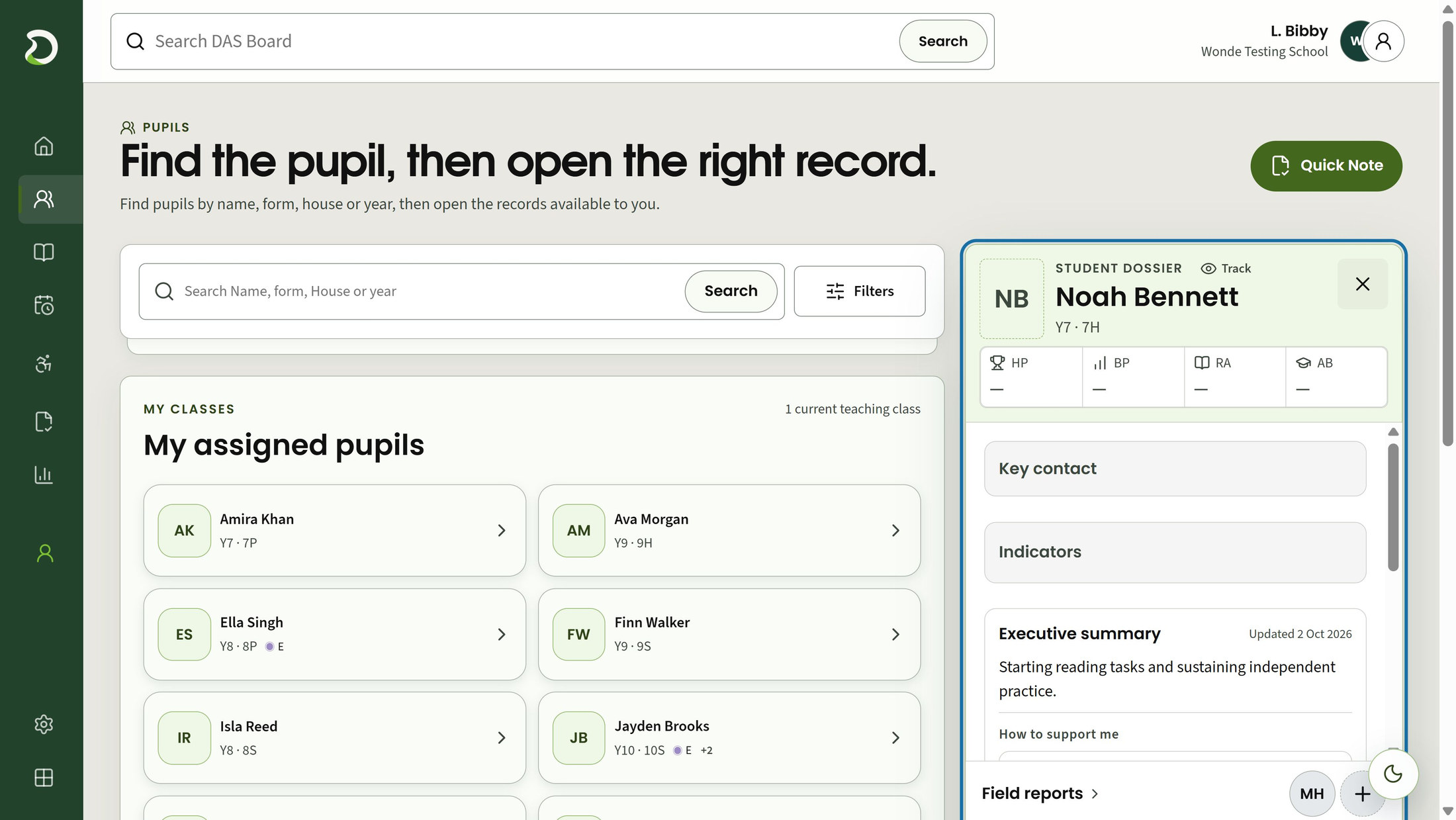
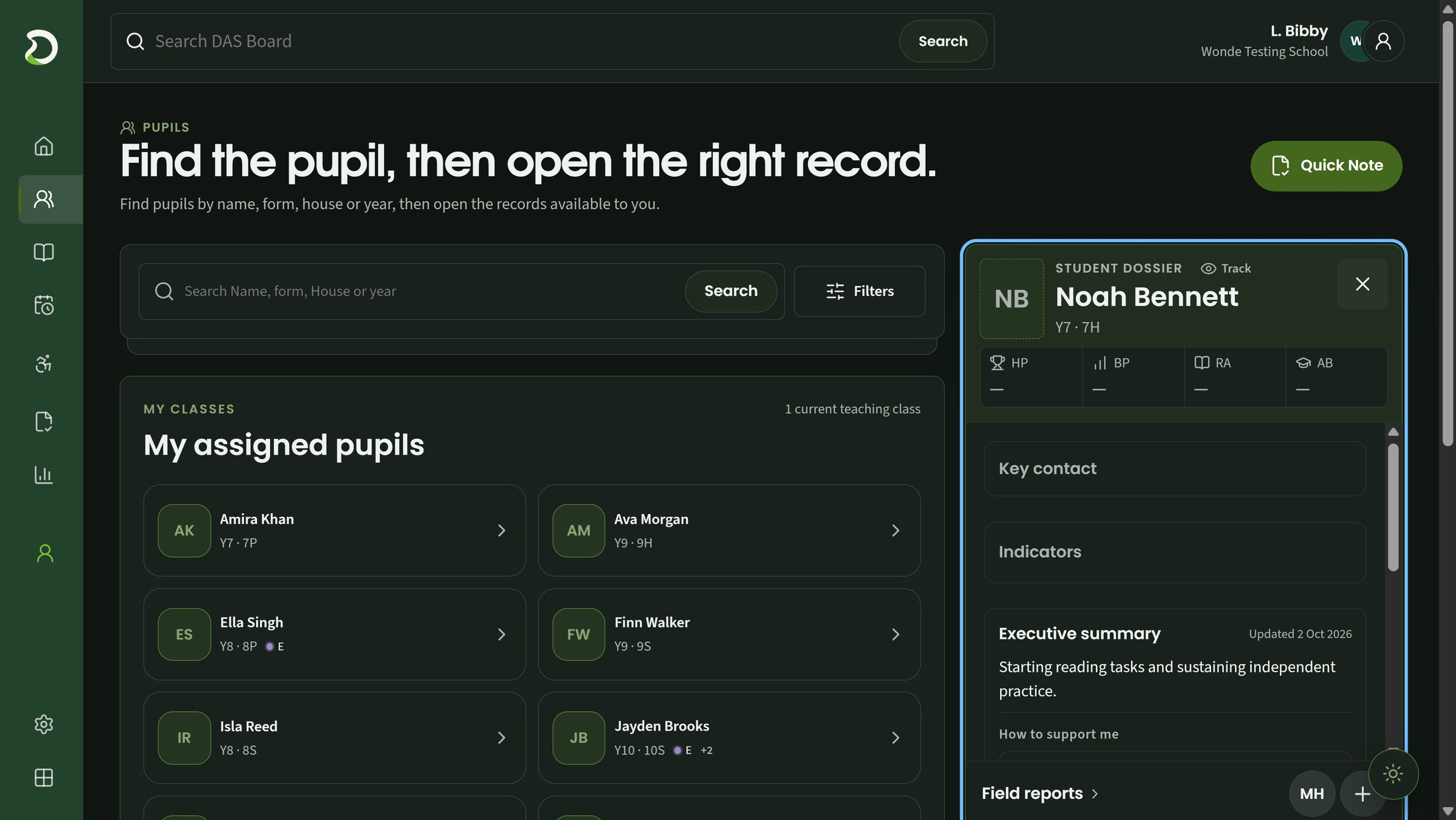
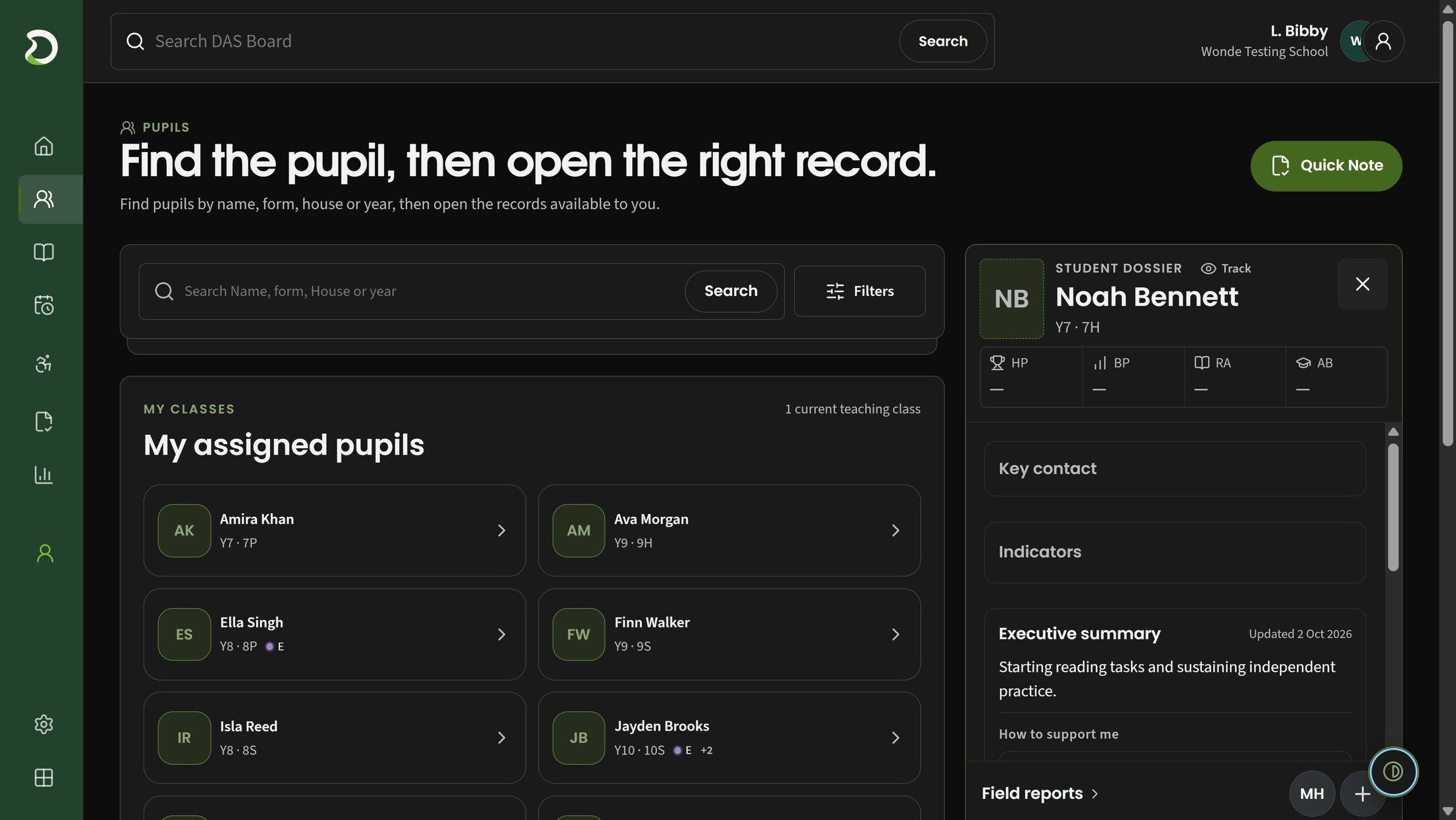
Explore AccountDAS Board · Light, Dark and Contrast
One task, three ways to see it. Choose the view you find clearest as your working environment changes.
DAS Board with illustrative school data. The pupil, task and screen position are the same in all three views.
Bright surfaces and dark text keep the workspace open and clear. Choose this view when you prefer a lighter page.
Deep, product-toned surfaces reduce the bright areas of the workspace while keeping text and controls visible.
Neutral dark surfaces and pale text put words and boundaries first. Product and status colours remain where they carry meaning.
Use the round colour-mode control at the bottom right of the staff workspace. Click or tap once to switch between Light and Dark.
Hold the control for half a second to enter Contrast. A short press returns to the Light or Dark view you held from.
Tab to the colour control. Press Enter or Space to switch Light and Dark; hold either key for half a second to enter Contrast.
Your choice is saved in this browser for this app. Another browser or device can use a different view.
Ready also offers Light, Dark and Contrast buttons under Appearance in Settings. The colour control may be hidden on sign-in and presentation screens.
From exploration to setup
Talk through the apps you need, your staff’s access and the agreed Wonde MIS connection. The six-app suite is £3,000 per school/year, excluding VAT.