
Period-by-period whereabouts
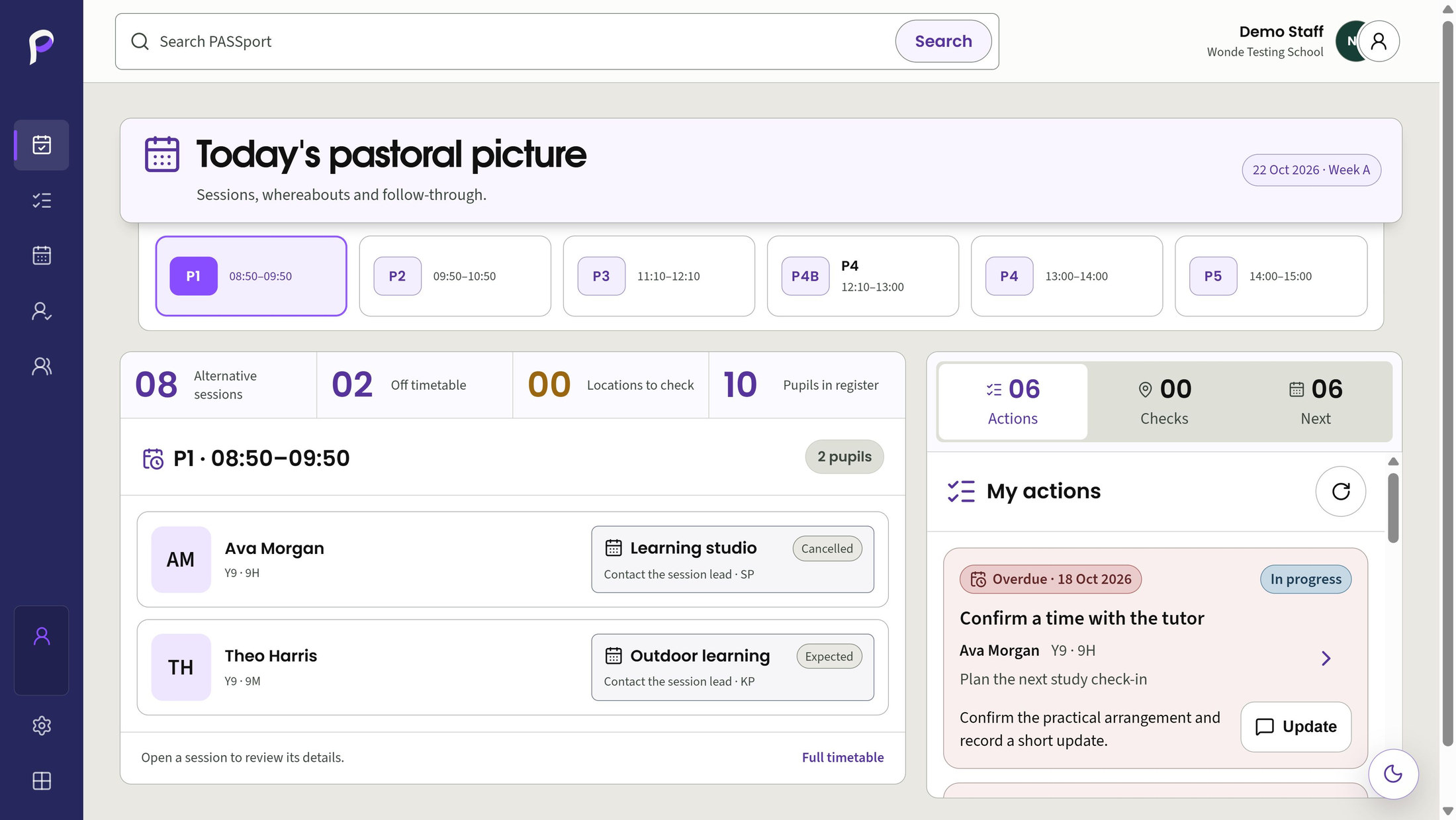
See the permitted alternative sessions expected on a selected school date and period.
For Teachers, Pastoral teams, Inclusion teams
Product walkthrough · PASSport
Keep period-by-period placements visible for pupils whose day includes alternative provision, interventions, therapy or other planned sessions.
These product screens use demonstration records. Your school’s access and connections depend on its licences and setup.
Explore PASSport
School examples and feature detail.
Area 1 of 7
PASSport
When a pupil is away from their usual lesson, start with the expected session for the selected date and period, then check what staff have recorded.
See each permitted alternative session and its destination. Record Present, Located or Not seen for that occurrence when your access allows it. Cancelled sessions remain explicit; quick marks are unavailable for future dates and cancelled sessions.
Open individual weeks or compare up to eight permitted pupils. Related sessions help place the current record in context. Ordinary lessons appear only where supplied and permitted; coinciding records do not establish that pupils belong to the same group.
Save personal searches, filters and selected pupils without extending access. The operational date stays separate. Delayed, unavailable and access-ended information have distinct states, and access or verification failures clear loaded pupil information.
Expected placements and recorded session marks are separate from live location tracking and the school's statutory MIS attendance codes.
Choose a numbered marker to look closer.
Selected period and time
Expected destination
Cancelled session
PASSport
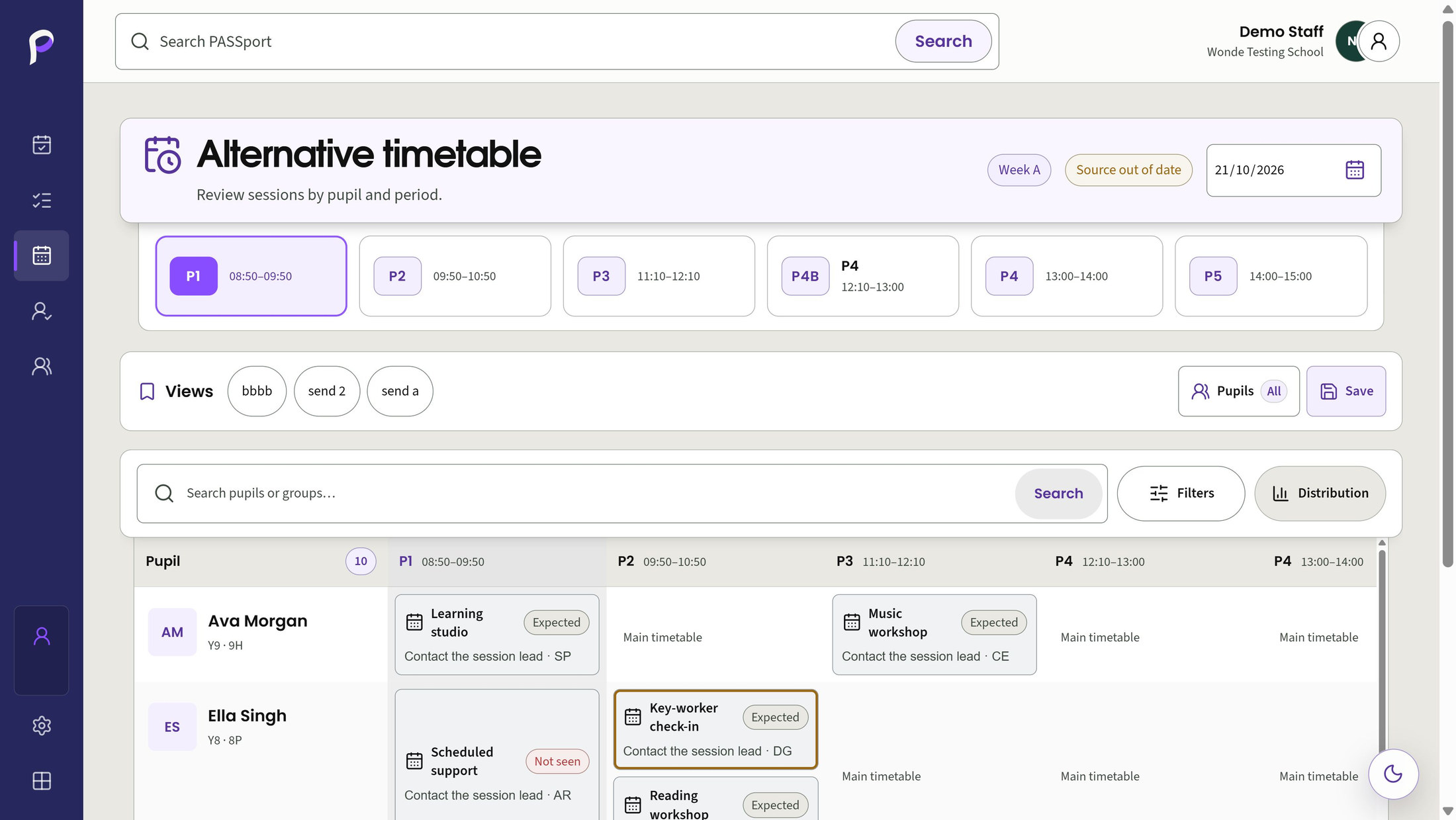
Build the intended timetable around the school's periods and week cycle. Keep repeating arrangements, one-day changes and brief staff contact clear.
DAS-linked provision is a configured option. Ask for a school-specific demonstration and discuss activation before relying on the link.
Schedule a one-off session or a recurring Every week, Week A or Week B placement within effective dates. Use the configured school-day times, including year-specific variations. The school's confirmed Week A anchor determines the alternating dates.
Move or cancel a dated occurrence without rewriting its recurring placement. Destination conflicts are checked. Linked outcomes, exceptions and handovers protect earlier operational history; unused manual placements have a separate removal route.
Record pickups with explicit times and durations, plus collection and return instructions. Apply a reviewed placement draft to up to 50 selected pupils, with individual results. Governed locations and separate session/pickup types keep choices consistent; historical labels remain available.
For schools using both products, an explicit link can connect an approved DAS enrolment to its PASSport schedule. Both licences, current permissions and school setup are required. Discuss activation for your school before use. DAS keeps professional decisions; PASSport keeps the schedule and recorded delivery.
Scheduling and batching do not decide pupil eligibility or enrolment. Ordinary staff see separately approved movement instructions; restricted operational notes retain their own access.
Choose a numbered marker to look closer.
Source status and selected date
Periods and session destinations
PASSport
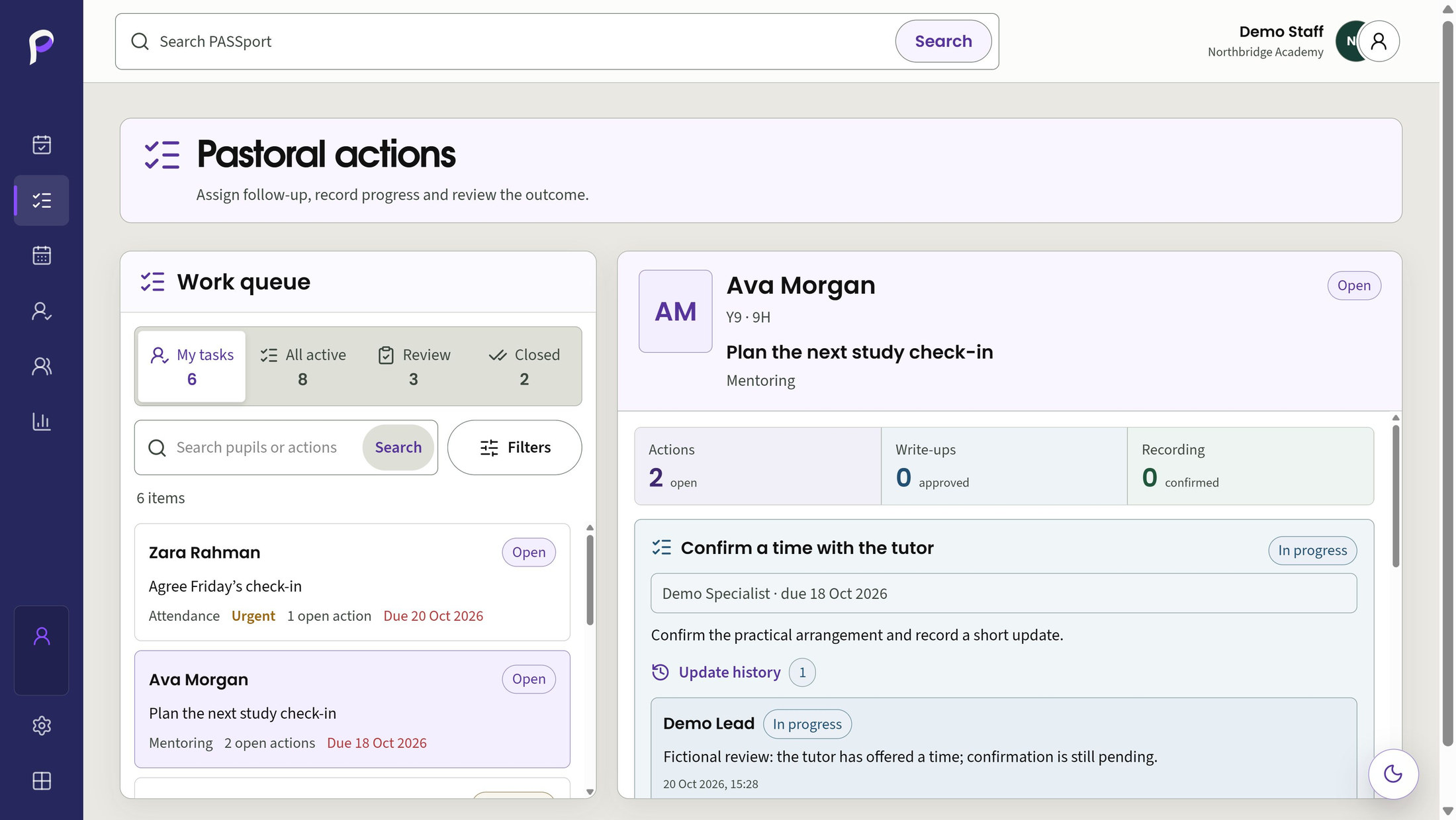
Turn an unresolved check into owned work. Keep operational handovers and pastoral actions clear, with the people responsible and the next step visible.
Give a pupil or placement handover an owner code, priority and optional due date. Acknowledge, escalate, review, close or reopen it through recorded transitions. Closing a handover leaves pastoral case decisions separate.
Create permitted pastoral work without requiring a timetable placement. Assign shared actions to verified current staff or Account-owned teams. Recipients need existing pupil access and update eligibility; assignment and team membership grant no new product or pupil permissions.
Choose assignees separately from readers of staff-facing context. My tasks, All active, Review and Closed queues organise permitted work. The recent-closed count covers seven days; archive search reaches all permitted closure dates within its visible paging limits.
Find your pending actions independently of the register period. Add attributed progress and corrections without erasing earlier entries. Revision checks protect against stale saves. Marking an action Actioned removes it from pending work while Lead closure and external recording remain separate.
Restricted source narrative, supervisory write-ups, recording evidence and history retain separate permissions. Manual PASSport work keeps its own origin.
Choose a numbered marker to look closer.
Responsible colleague and due date
Current action state
Attributed progress update
PASSport
Keep the final stages clear: checking the wording, supplying an approved version, confirming external recording and making the authorised closure decision.
Prepare versioned write-ups from permitted context and attributed updates. A reviewer approves the exact wording; an authorised colleague can then copy or export that selected approved version. Approval and export do not establish that another system has been updated.
Staff with pupil-data export permission can prepare an editable factual note from the visible session and outcome. It stays in memory and is copied only on request. PASSport neither saves it as a CPOMS record nor sends it directly to CPOMS.
An authorised colleague confirms which approved version was recorded, with the system reference, person and time. A designated Lead separately closes or cancels actions. Every action must be Closed or Cancelled before case closure; permitted reopening remains explicit.
A recording receipt is the colleague's confirmation, not automatic verification of the external system. Staff completion, reviewed wording, recording and formal closure remain distinct.
Choose a numbered marker to look closer.
Choose the permitted work queue
Separate progress and recording states
PASSport
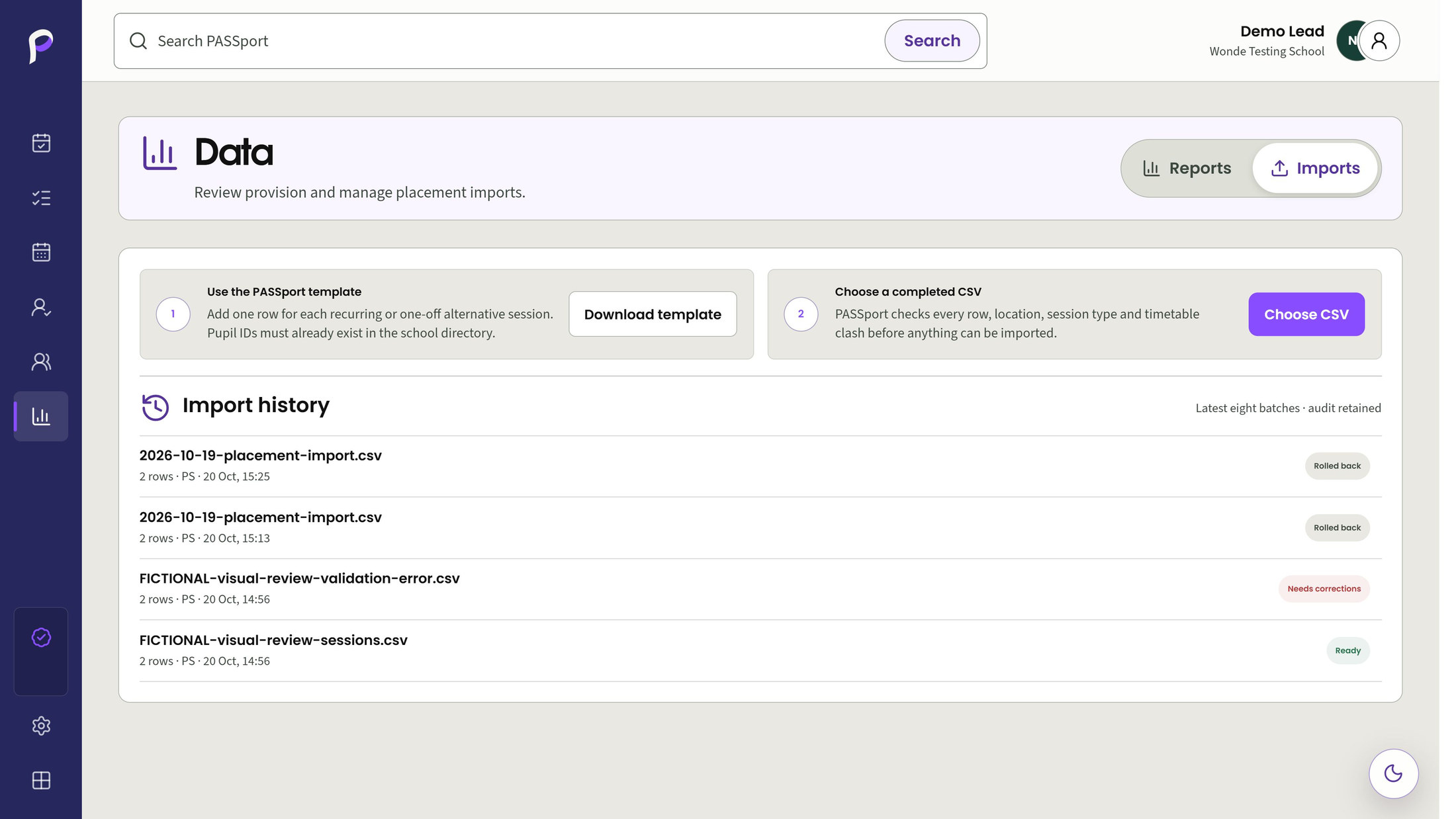
Review spreadsheet work before it becomes a timetable placement or pastoral item. The two import routes have different templates, limits and matching decisions.
Map a school-supplied CSV and review pupil matches, duplicates and conflicts before committing. This route accepts up to 1 MiB and 500 rows. Stable source identifiers are used only when supplied and valid; missing identifiers need deliberate creation or separate reconciliation.
Preview the fixed placement template against current school pupils, active references and timetable conflicts. Files are limited to 1,000,000 bytes and 2,500 placement rows, then rechecked before commit. Eligible rollback protects later edits, outcomes and handovers and may be blocked by them.
There is no direct CPOMS connection or assumed CPOMS export layout. School-led mapping review remains required. A record missing from a later file never closes existing work.
Choose a numbered marker to look closer.
Download the placement template
Choose the completed CSV
PASSport
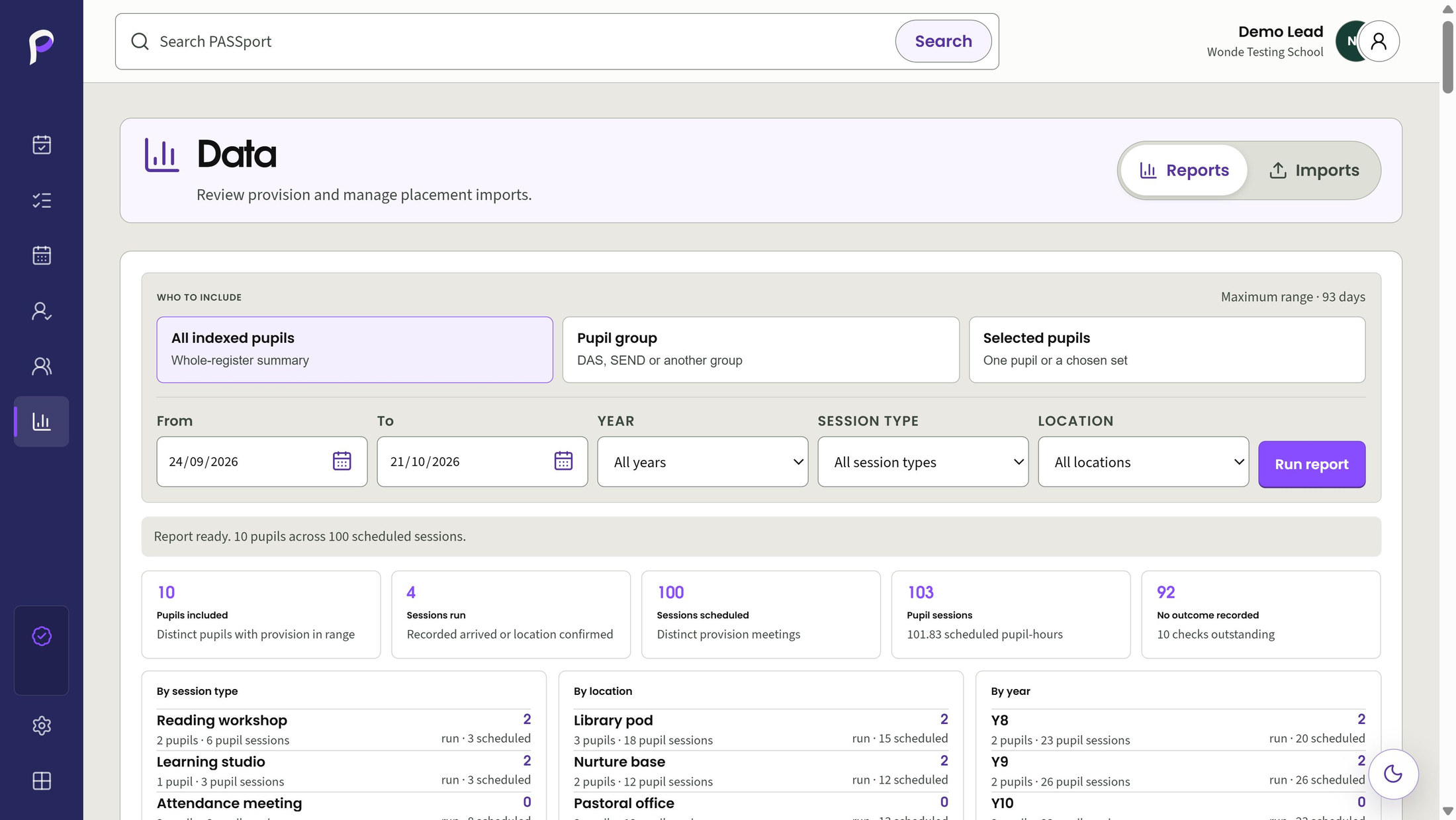
Use a bounded report to inspect what was scheduled, what staff recorded and which checks remain unresolved. Keep the measures distinct.
Report across up to 93 days for indexed pupils, a group or selected individuals, then narrow by year, type or location. Results separate distinct pupils, scheduled pupil places, provision sessions run and scheduled hours. A session counts as run only with a recorded arrival or location confirmation.
Staff with dedicated pupil-data export permission can create an on-demand detailed CSV for the selected, permitted report scope. Exports are bounded to 10,000 scheduled sessions and protect spreadsheet cells from formula injection.
These are operational activity measures. Attendance, a recorded session or completed work does not establish educational impact or replace professional review.
Choose a numbered marker to look closer.
Distinct pupils
Sessions run and scheduled
Pupil sessions and hours
PASSport
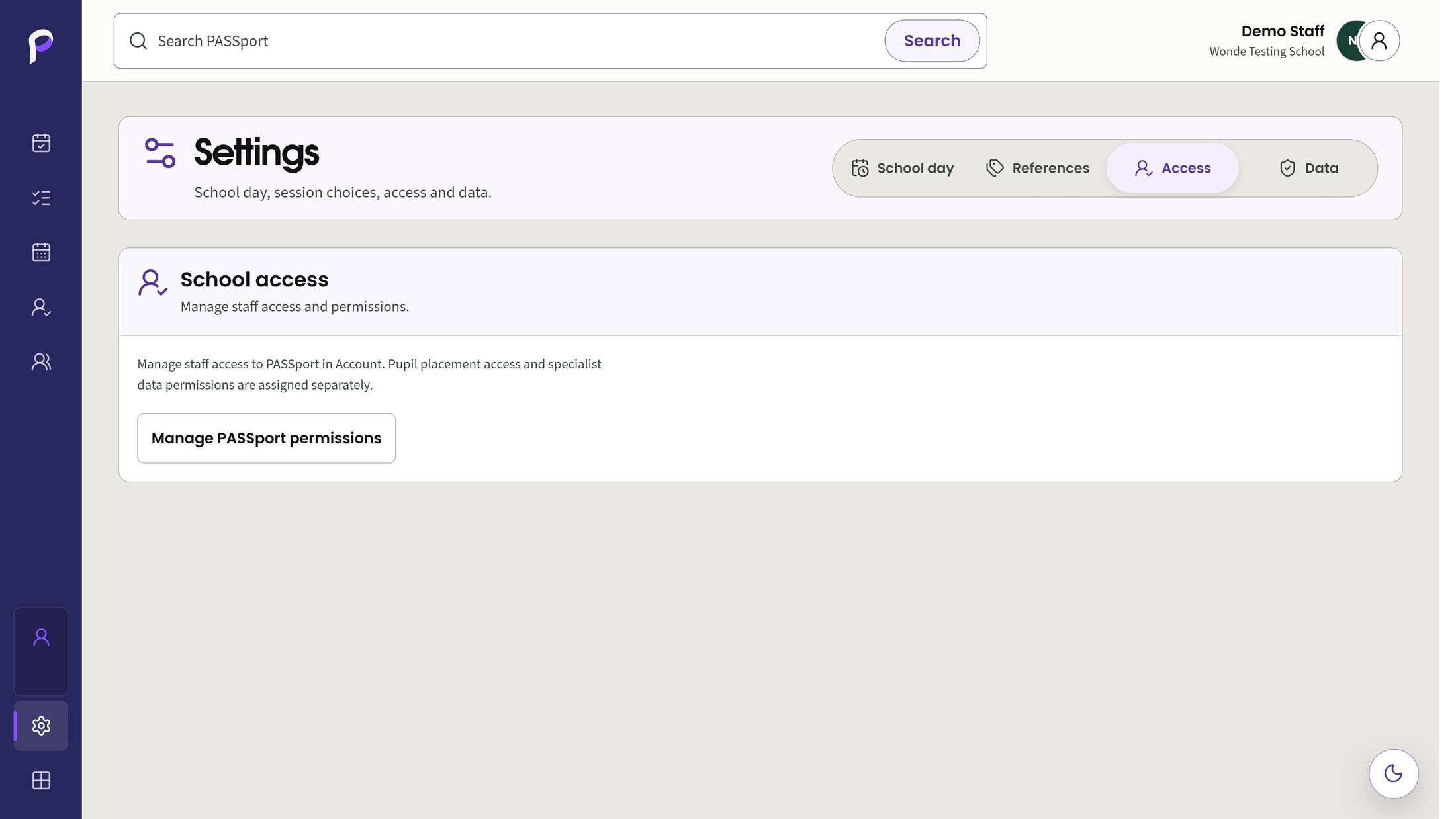
Give staff the access needed for their responsibilities, use authoritative pupil references and agree how records will be managed over time.
Read, record, handover, source, review, export, configuration and closure duties have separate permissions. Role profiles are starting points, not blanket access. Use the shared school directory for pupil identity; a name match or assignment never creates authority to read a pupil's record.
A warning helps you decide whether to keep editing or leave an unsaved form. Labelled controls support keyboard use. Discuss your school's access needs and device support, and try the relevant workflows during the trial.
An authorised school can set approved retention periods, preview candidate totals and make a separate confirmed execution decision. School/DPO policy and an approval reference are required before a run. The timetable retention process does not delete pastoral records.
Configuration access never opens pupil records by itself. Agree the school's policy and approval before any retention run.
Choose a numbered marker to look closer.
Staff access is managed in Account
Pupil-placement permissions stay separate
Find the detail
Browse by school job, feature or the people using it.
Features 38
No matching features. Try a broader term or clear the filters.
See the permitted alternative sessions expected on a selected school date and period.
For Teachers, Pastoral teams, Inclusion teams
Record Present, Located or Not seen against each permitted session occurrence.
For Session staff, Pastoral teams
Open individual five-day timetables or compare permitted weeks for several pupils.
For Pastoral teams, SEND teams, Timetable coordinators
Inspect the pupil's permitted weekly sessions and records coinciding with the selected session.
For Session staff, Pastoral teams
Save personal combinations of search, filters and selected pupils.
For Pastoral staff, Heads of Year, Session coordinators
Show source availability, delayed loading and distinct access or licence failures.
For All authorised staff
DAS-linked provision is a configured option. Ask for a school-specific demonstration and discuss activation before relying on the link.
Schedule a session once, every week, Week A or Week B within effective dates.
For Timetable coordinators, SEND teams, Pastoral teams
Use configured teaching periods, exact times, break/lunch bands and year-specific timing alongside the week cycle.
For School administrators, Timetable coordinators
Move or cancel one occurrence while retaining its recurring placement.
For Session coordinators, Pastoral teams
Check overlapping schedules and protect placements with existing operational history.
For Timetable coordinators, School administrators
Record a one-off pickup with an explicit start time and duration.
For Pastoral staff, Inclusion staff, Approved agents
Keep collection and return instructions with the placement.
For Session staff, Pastoral teams
Apply a reviewed placement draft to selected pupils and receive a result for each.
For Provision coordinators, Pastoral teams
Maintain locations, session types and separate pickup types, including labels, icons and colours.
For Reference administrators, Provision coordinators
Preview an approved DAS enrolment and explicitly link a PASSport placement with source revision checks.
For Schools licensing both products, Provision coordinators
Create a pupil or placement handover with an owner code, priority and optional due date.
For Pastoral teams, Inclusion teams, Session coordinators
Acknowledge, escalate, review, close or reopen a handover through recorded transitions.
For Pastoral leads, Session coordinators
Create a permitted pastoral item even when the pupil has no alternative placement.
For Pastoral teams, Heads of Year, Inclusion teams
Assign shared actions to current verified staff and Account-owned teams.
For Pastoral coordinators, Heads of Year, Designated leads
Choose who carries out an action separately from who can read its staff-facing context.
For Pastoral coordinators, Designated leads
Work through My tasks, All active, Review and Closed queues with search and filters.
For Pastoral teams, Reviewing leads
See personal pending assignments, due-date cues and quick update controls from Today.
For Assigned staff, Tutors, Pastoral staff
Append staff progress entries and preserve corrections alongside the earlier entry.
For Assigned staff, Reviewing leads
Prepare and approve write-up versions from permitted context and attributed updates.
For Designated reviewers, DDSL/DSL with explicit grants
Copy or export a selected approved write-up version.
For Authorised reviewers, Authorised recording colleagues
Prepare an editable factual note from the visible session and its recorded outcome for explicit copying.
For Staff with pupil-data export permission
Record which approved write-up was entered into a named external system, by whom and when.
For Authorised recording colleagues, Designated reviewers
Require an authorised Lead decision to close or cancel actions and close or reopen the case.
For Designated internal leads
Map a school-supplied CSV, review pupil matches and row decisions, then commit reviewed work.
For Authorised source reviewers, Designated leads
Identify duplicates, conflicts and unreconciled rows instead of silently replacing local work.
For Authorised import reviewers, Designated leads
Preview timetable imports using a fixed template with row-and-column errors before commit.
For Timetable administrators, Provision coordinators
Roll back an eligible placement batch while protecting later operational work.
For Authorised import administrators
Report by pupil, selected pupils or group, then narrow by dates, year, type or location.
For Pastoral leads, Inclusion leaders, Provision coordinators
Download the selected, permission-filtered report scope as a detailed CSV.
For Authorised reporting staff, School leaders
Apply separate read, record, handover, source, review, export, configuration and closure permissions on the server.
For School administrators, Product leads, All authorised staff
Use the shared school directory while keeping the register focused on permitted operational pupils.
For Session coordinators, Pastoral teams, School administrators
Guard unsaved edits during navigation and provide labelled, keyboard-operable controls.
For All authorised staff
Store an approved timetable retention policy, preview candidates and require a separate execution decision.
For Authorised retention administrators, School data leads
Make it work for your school
Explore another app, check the complete annual price, or arrange a conversation about your school’s needs and Wonde MIS integration.