
Room starting patterns and a personal default
Create a reusable room from a starting pattern and choose a personal default.
For Teachers, Department leads
Product walkthrough · SitRep
Create seating plans around the real room, practical requirements and the choices that help a class work well.
These product screens use demonstration records. Your school’s access and connections depend on its licences and setup.
Explore SitRep
School examples and feature detail.
Area 1 of 7
SitRep
Create the reusable room first, then use its seats in class plans. Keep the layout recognisable across planning, teaching and print.
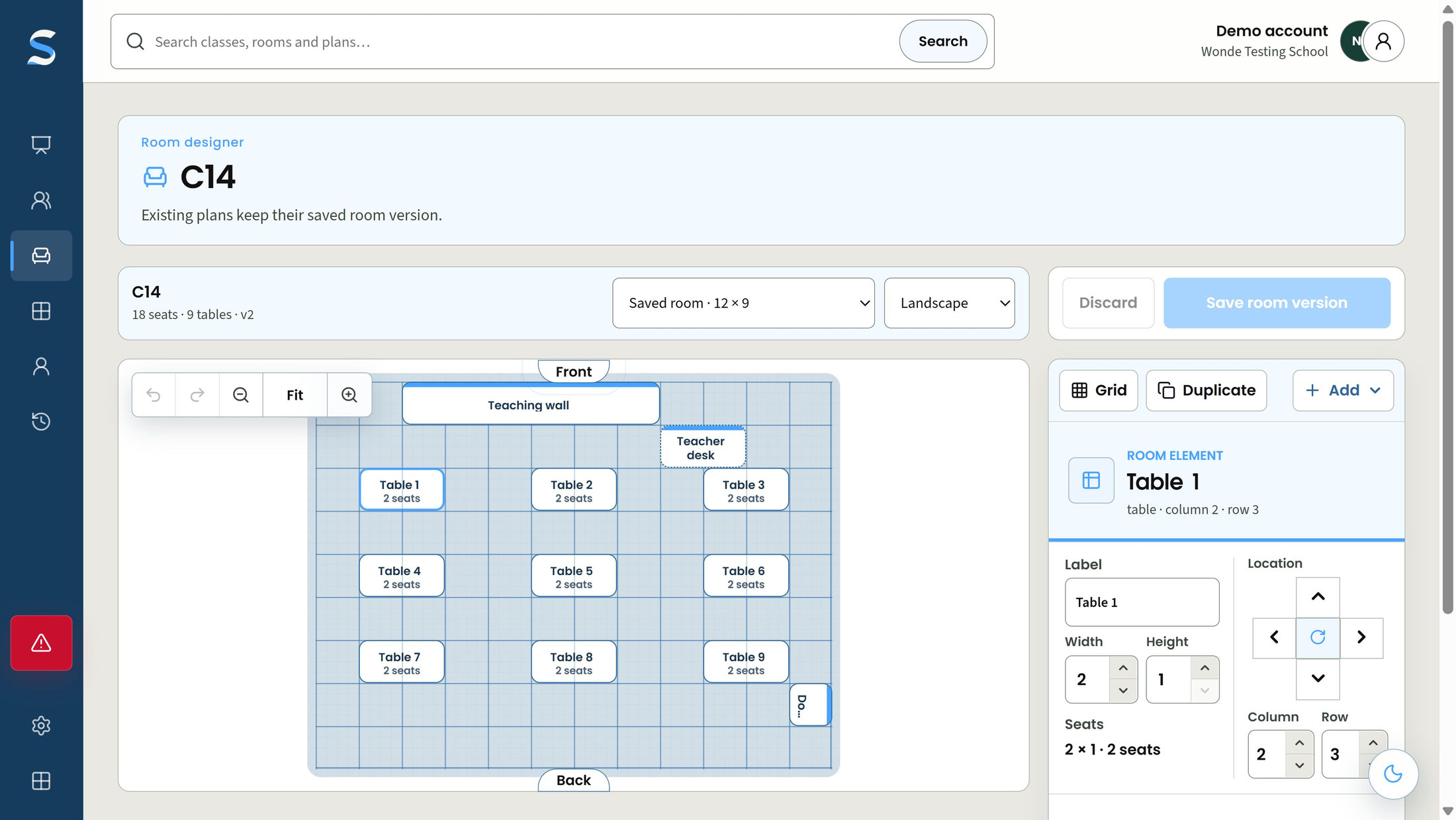
Create a room from an existing starting pattern and choose a personal default. Select classroom or hall dimensions and landscape or portrait orientation. An existing-room resize remains an unsaved change until every element fits the new bounds.
Add, move, resize, duplicate and rotate tables, a board, door, teacher desk and restricted areas. Bounds and collision checks help keep the saved layout coherent. Furniture keeps the same proportions across the designer, seating plan, lesson view and PDF.
Personal layouts retain their owner's control. Available school rooms can be used by permitted staff; editing them requires the separate room-settings permission. Shared use does not make every room freely editable.
Saving creates a new room version and preserves the old geometry. Plans do not silently adopt the new layout: review the proposed room change before saving their successor version.
The layout represents the furniture. Check physical access, support space and safety in the actual room; a drawing does not establish their suitability.
Choose a numbered marker to look closer.
Room size
Add furniture
Position controls
SitRep
Bring the permitted class and room together, keep alternative arrangements available and make the active plan a deliberate choice.
Connected classes use authorised school directory references. Missing fields are not filled with invented values. Source and membership warnings identify changes that need attention; stale or unavailable information can block a new plan or lesson.
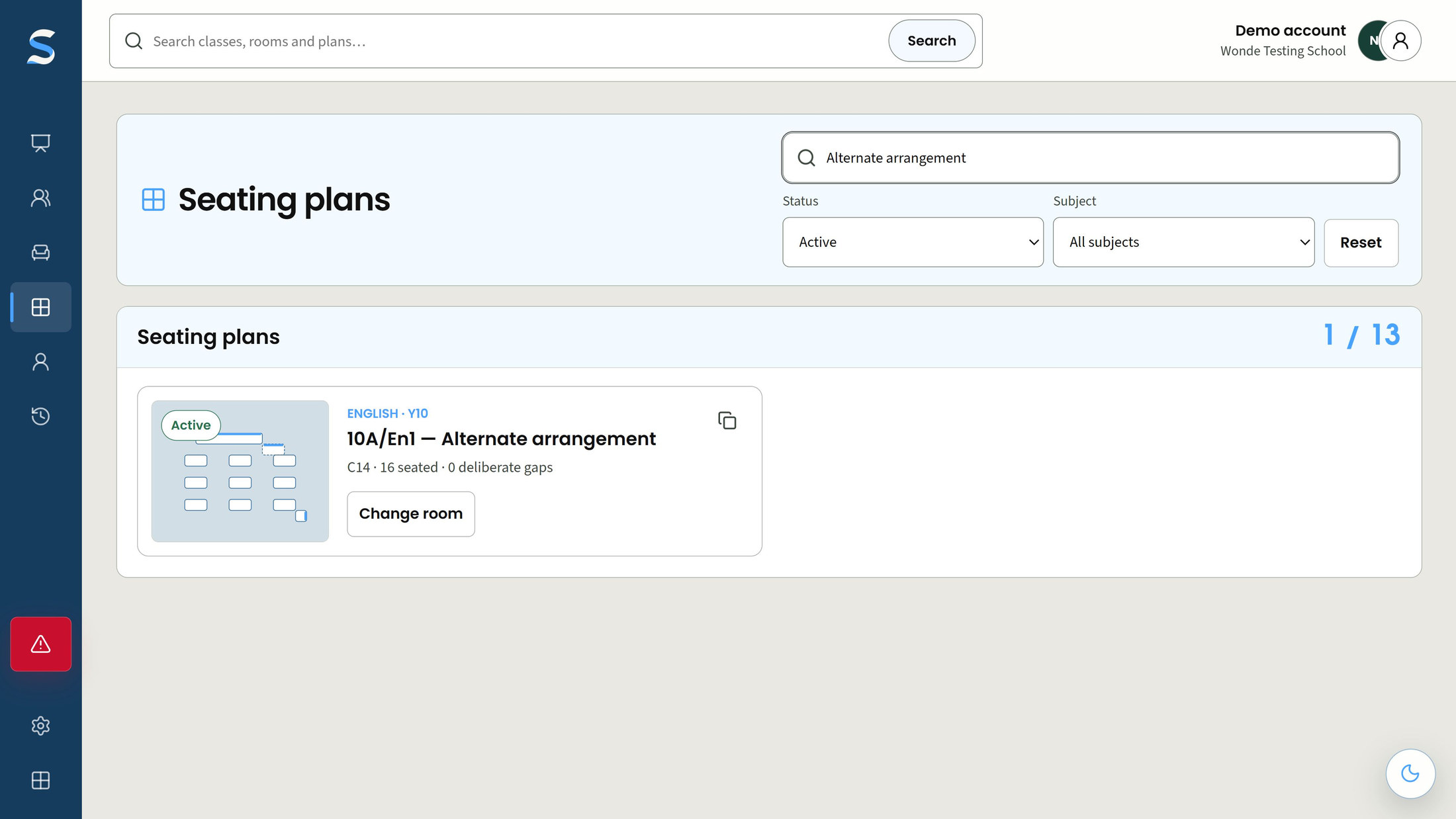
Keep named alternatives for the class. Copying makes a separate draft; explicitly activate the arrangement you intend to teach from. Only an active plan can start a lesson, and later changes do not rewrite the version used by an earlier lesson.
For a demonstration, preview a manual list or CSV of fictional names. Review duplicates and ignored columns before confirming it. This trial route is not a general live-pupil import or MIS synchronisation service.
A lesson-only assignment does not grant school-wide class access. A saved class-plan list is not an authorised timetable.
Choose a numbered marker to look closer.
Search plans
Filter by status
Named arrangement
SitRep
Move pupils directly or inspect an explainable starting arrangement. Keep fixed choices and unresolved requirements visible before saving.
Move or swap pupils by pointer, touch or keyboard, or return them to the unseated pool. Locks preserve fixed positions and deliberate gaps keep seats unused. Undo and redo step through local changes before a new version is saved.
Apply a teacher-created planning colour that follows the pupil within this plan. It is a temporary planning cue, not a diagnosis or an automatic tag shared with DAS Board. Names-only output omits it.
Try an arrangement with its explanation and remaining conflicts. Consider near/apart, same/different table, position and LSA-space requirements. New pupil rules stay private or go for authorised review; approved rules can be shared within scope. Refused rules do not apply.
Compare matching seats, pupils needing places and seating-rule conflicts before confirming another permitted room. Saving creates a new plan version rather than silently changing the original arrangement.
Suggestions never silently save. Optional grouping needs a school-approved field; missing values remain explicit and nothing is inferred from names. Check that proposed support space suits the pupil and room.
SitRep
Choose the audience view, keep permitted guidance close and capture factual events as lesson drafts.
Published DAS guidance needs a configured connection and current permissions. Confirm the available action catalogue during school setup.
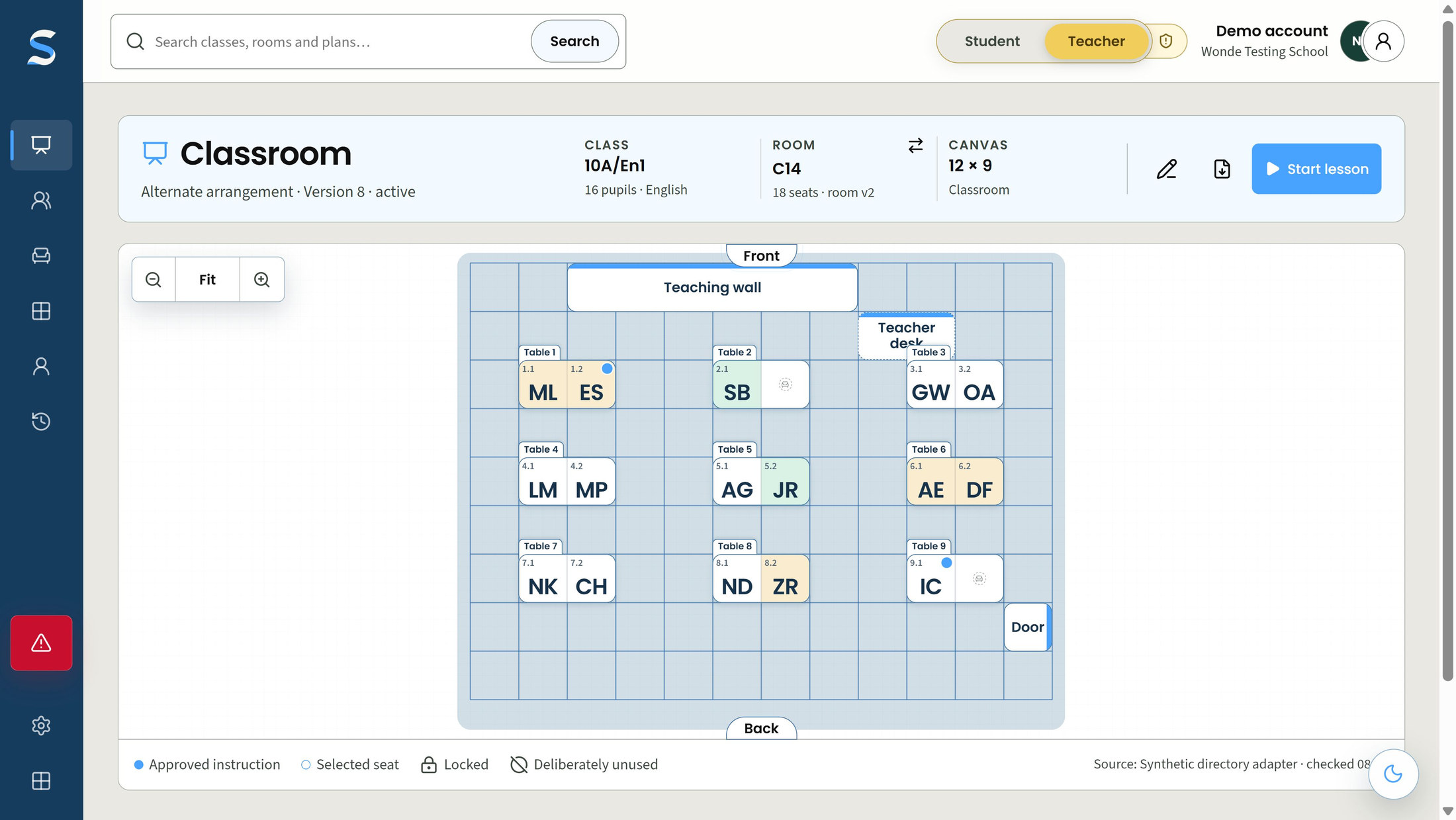
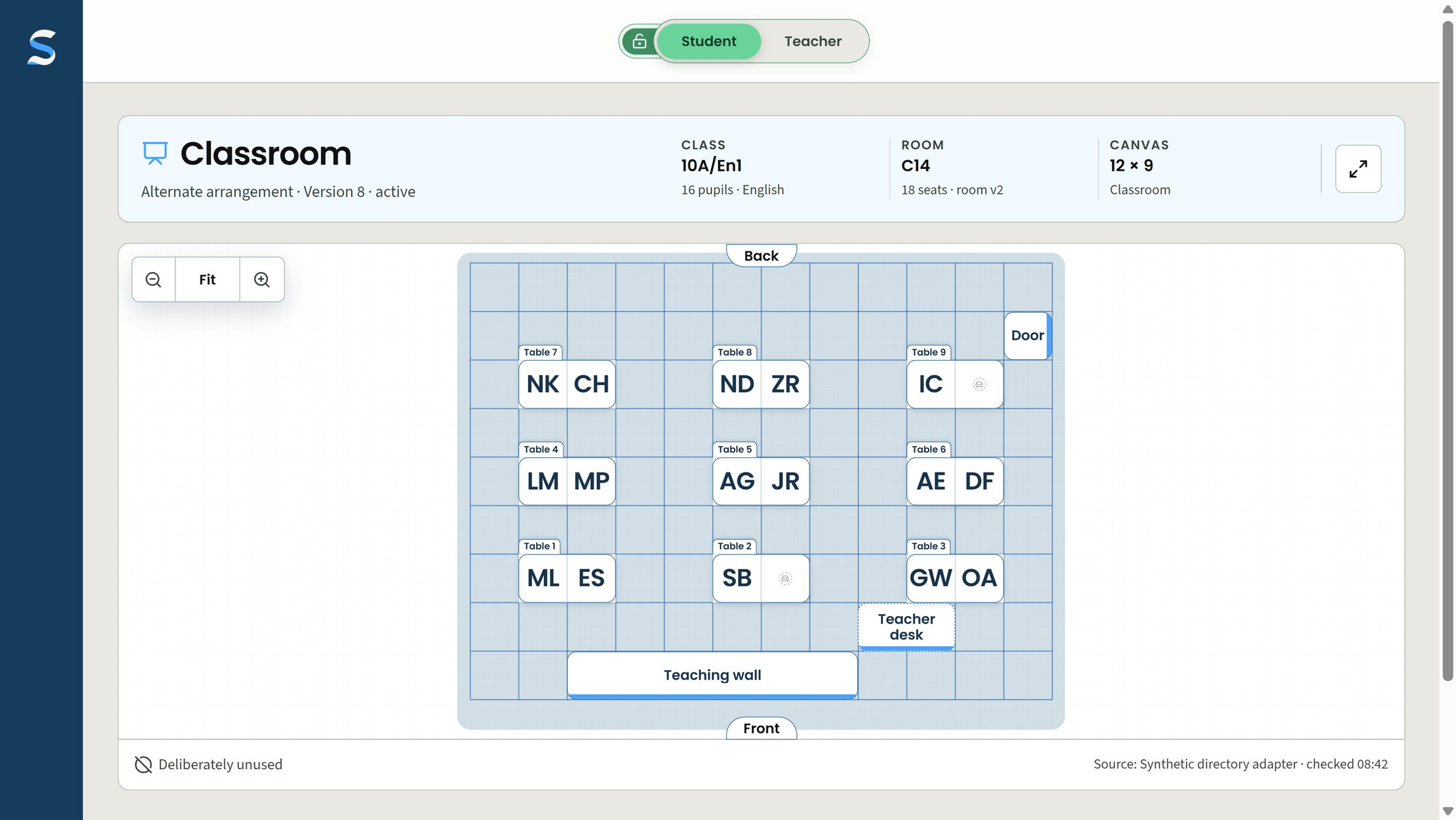
Use a names-only student view or the private teacher context, with room-fit presentation and zoom. Choose PDF content deliberately: deselected text and images are absent. Private overlays are omitted from names-only output; portraits must be authorised images supplied by the school directory.
A configured, permission-checked DAS connection can show published classroom strategies with their source. Unavailable guidance stays explicit. Diagnostic and safeguarding rationale is not copied, and the connection does not guarantee that a strategy bank is populated.
Start from the active plan's saved version. Record available positive or negative choices for one pupil or a deliberate selection, with short factual notes. Correct a review note or undo an eligible event or batch. These remain lesson-scoped drafts until review.
Select and order available actions under personal or school palette policy. Labels, definitions and points remain read-only catalogue information. School-wide choices need the configuration permission. The available catalogue depends on the school's agreed setup.
An authorised colleague can use the plan as a teaching or cover view. SitRep does not allocate cover or replace statutory attendance, a markbook or safeguarding records.
Choose a numbered marker to look closer.
Student view selected
Maximise the room
Room orientation
SitRep
Check the factual lesson record, preserve the approved version and use seating context as a prompt for professional reflection.
Inspect permitted plans, neighbours, tablemates and valid relative room positions. Counts show their denominators; an unmarked feature or missing position is unavailable rather than zero. A plan list becomes a timetable only when authorised timetable data is supplied.
Look back over your latest 30 reviewed or copied lessons using their original layouts. Same-class pattern cards need five lessons across three days in each comparison and differences of at least 0.5 points per lesson and 25%. Sample sizes and missing records stay visible.
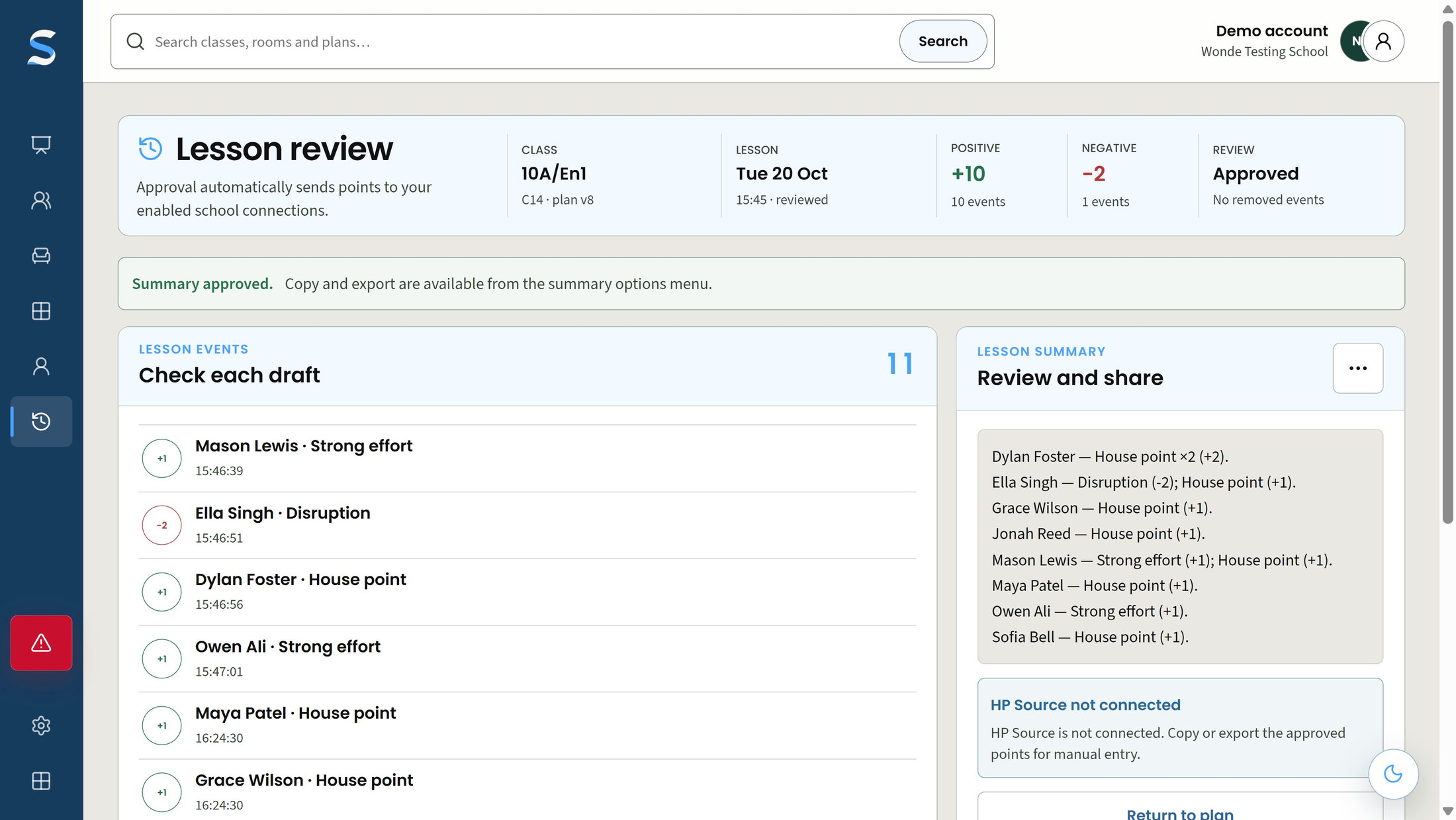
Edit factual notes, remove mistakes and review the regenerated pupil summary. Approval preserves the exact checked event/category snapshot. Later catalogue changes do not rewrite it, and approval remains separate from successful delivery.
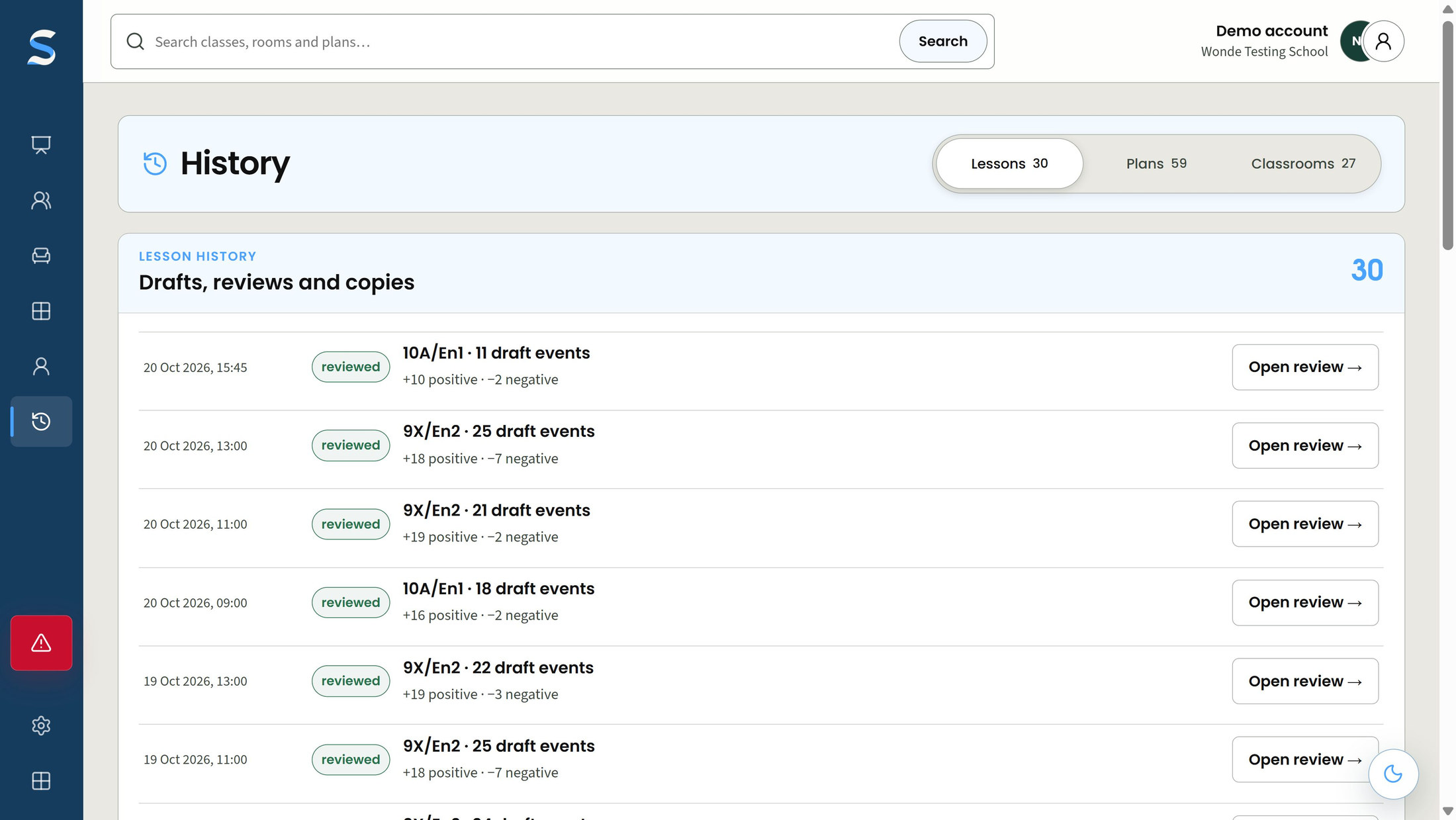
Browse original room, plan and lesson history. Readiness reports identify plans affected by room updates, roster changes, source attention or unresolved constraints, with routes back to the work needing attention.
Recorded associations do not establish causation, diagnose a pupil or rank pupils or teachers. They do not automatically create seating rules or publish tags.
Choose a numbered marker to look closer.
Choose the history
Reviewed status
Open the review
SitRep
Keep the permitted classroom task clear, and distinguish a source problem from a licence, permission or sign-in issue.
Class, pupil, plan, lesson, note and output views are filtered by current school and record scope. Plan management, lesson recording, review approval, export, seating-rule review and external duties are separate. Admin settings do not provide blanket pupil access.
Stale or unavailable sources, licence/access failures and delivery states have distinct explanations. Secure sign-in recovery helps when a session needs renewed verification. An unavailable class source is not presented as an empty class or successful delivery.
Connected information and actions depend on current school configuration and permissions. Check the displayed state before using a plan or continuing a handoff.
Find the detail
Browse by school job, feature or the people using it.
Features 38
No matching features. Try a broader term or clear the filters.
Create a reusable room from a starting pattern and choose a personal default.
For Teachers, Department leads
Choose classroom or hall dimensions and landscape or portrait orientation.
For Teachers, Room administrators
Add, position, resize, duplicate and rotate room elements within validated bounds.
For Teachers, Room administrators
Keep personal room ownership distinct from permitted school-room editing.
For Teachers, School room administrators
Save room changes as a new version while preserving earlier geometry.
For Teachers, Room administrators
Use the authorised school directory for connected class membership and pupil references.
For Teachers, School administrators
Check class source readiness and surface pupils who need plan reconciliation.
For Teachers, Department leads
Keep alternate named plans and explicitly select one active plan per class.
For Teachers
Preview manual or CSV names with duplicate checks and stable-reference reconciliation in the fictional sandbox.
For Trial reviewers, Teachers preparing demonstrations
Move pupils between seats or the unseated pool by pointer, touch or keyboard.
For Teachers
Keep selected pupils fixed and mark seats deliberately unused.
For Teachers
Step back and forward through local arrangement changes before saving.
For Teachers
Apply teacher-created planning colours that follow the pupil within the plan.
For Teachers
Try random, alphabetical, front/back, priority or distribution arrangements with reasons and remaining conflicts.
For Teachers
Check rules such as sit near/apart, same/different table, front/area preference and LSA space.
For Teachers, Authorised seating-rule reviewers
Keep an author's new rule private or send it for an authorised review before sharing it.
For Teachers, Authorised seating-rule reviewers
Compare a plan with another permitted room before saving a new plan version.
For Teachers
Published DAS guidance needs a configured connection and current permissions. Confirm the available action catalogue during school setup.
Switch between the private teacher context and a cleaner student-facing seating view.
For Teachers, Pupils viewing the presented plan
Fit, zoom and present the seating canvas while retaining its saved geometry.
For Teachers, Pupils viewing the presented plan
Create a plan PDF with server-applied choices for names, supplied portraits, colours and permitted support text.
For Teachers with export access
Show published, permitted DAS classroom strategies through a purpose-limited projection.
For Teachers, Schools licensing the relevant products
Start a lesson from an active plan and retain the plan version used at its start.
For Teachers, Authorised lesson agents
Use configured positive/negative quick choices or the full available event list during a lesson.
For Teachers, Authorised lesson agents
Select several occupied seats and apply one available event choice with an optional shared comment.
For Teachers, Authorised lesson agents
Add a short factual note and undo a mistaken eligible event or batch.
For Teachers, Authorised lesson agents
Select and order available event actions under a personal-staff or school-wide palette policy.
For Teachers, Explicitly authorised school configuration staff
Inspect a pupil's permitted class plans, neighbours, tablemates and relative room position.
For Teachers with pupil access
Inspect historical point patterns against original seating snapshots and relative room positions.
For Teachers with pupil access
Finish teaching, edit factual notes, remove mistakes and regenerate a pupil-by-pupil summary.
For Teachers with lesson review access
Approve a checked lesson and retain the exact reviewed event/category snapshot.
For Teachers with approval access
Browse preserved room/plan versions and reviewed lesson, copy and export history.
For Teachers with current record access
Inspect missing plans, room changes, stale roster assignments, source attention and seating conflicts.
For Teachers, Authorised department leads
Filter classes, pupils, plans, lessons, notes and outputs by current school, capability and record scope.
For School administrators, All authorised staff
Distinguish stale/unavailable sources, licence/access failures and reviewed-delivery attention states.
For All authorised staff
Make it work for your school
Explore another app, check the complete annual price, or arrange a conversation about your school’s needs and Wonde MIS integration.