
A personal staff starting point
Bring permitted notices, shelves, school-selected apps and personal favourites together.
For school staff
Product walkthrough · WorkPane
Give staff an optional home for the day’s notices, calendar, work summaries and trusted links, organised around the people who need them.
These product screens use demonstration records. Your school’s access and connections depend on its licences and setup.
Explore WorkPane
School examples and feature detail.
Area 1 of 7
WorkPane
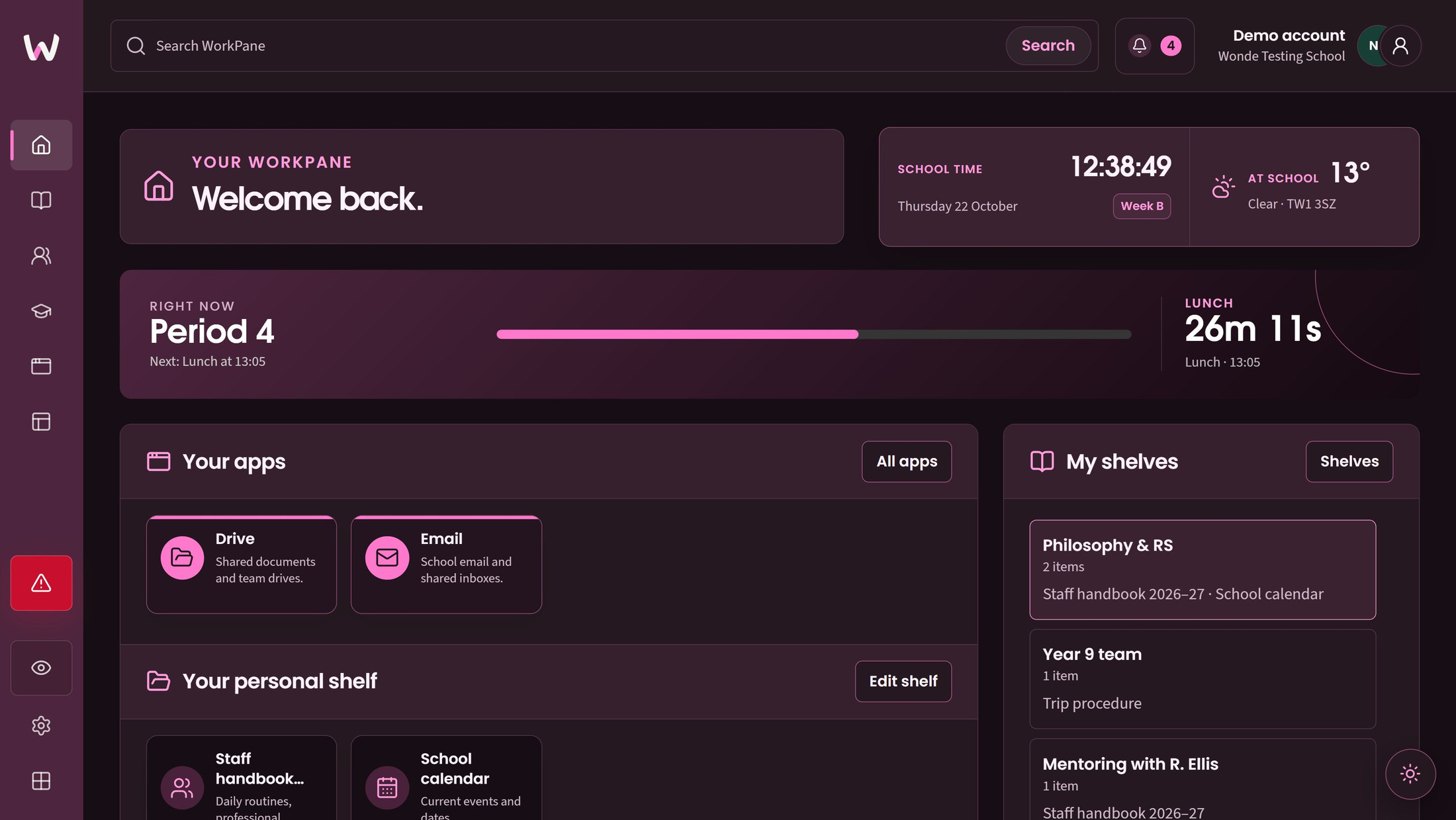
Bring the information and shortcuts relevant to your role into a familiar staff workspace, with clear routes back to the products that own the work.
Ask about approved configuration before relying on live weather information.
Home brings permitted notices, shelves and school-selected apps together. Keep school-promoted launchers separate from your personal favourites; each destination retains its own licence, access and sign-in requirements.
Read permitted work summaries from licensed source products, then open the owning app. Dismiss a summary or your personal list with Undo; this does not complete, edit or delete the source work.
A school-configured weather view can show observation time and whether information is available. Live use needs an approved provider configuration; the feature does not use the staff member's device location.
WorkPane is included in the full six-app suite. Products remain independently usable; source permissions, freshness and availability still apply.
Choose a numbered marker to look closer.
Go to your school services
Open the wider app catalogue
WorkPane
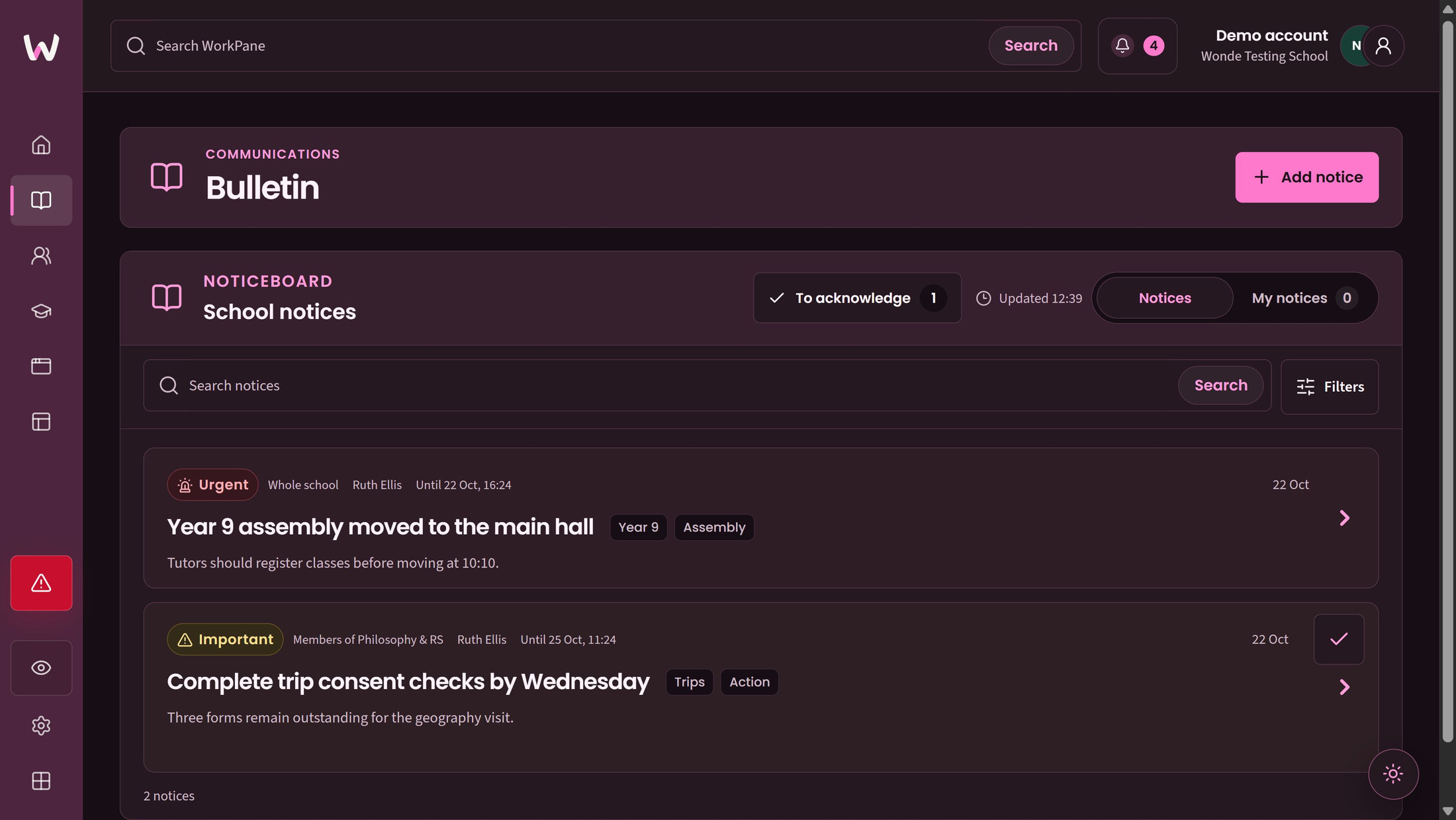
Give school notices a clear audience, useful timing and an appropriate review route, from the first draft to expiry.
Compose a titled notice with rich text, tags and priority. Where review is required, another permitted publisher approves it or returns it with a private note; authors cannot approve their own submission.
Address current permitted school groups, roles or staff, then distinguish scheduled, current, expired and archived notices. Selecting an audience does not grant publishing authority.
Authorised school owners set notice defaults, expiry limits and review or acknowledgement requirements. Readers can acknowledge notices where required, but acknowledgement is not evidence of understanding.
School publishing rules and permissions apply throughout. Private review notes remain with the author and permitted publishers.
Choose a numbered marker to look closer.
Audience and timing stay visible
Acknowledgement has its own control
WorkPane
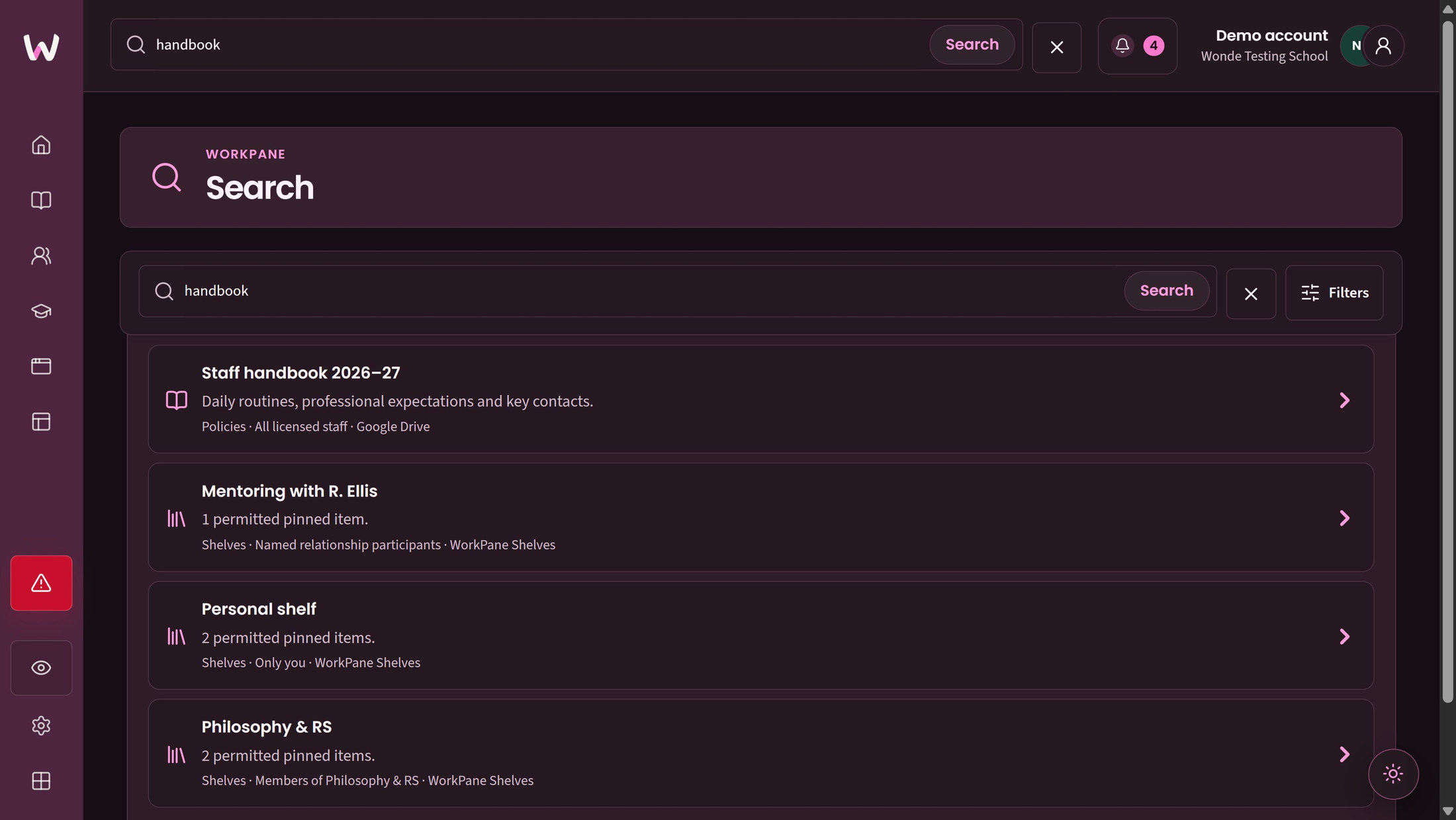
Give staff a clear route to useful information while leaving source documents and their access rules with the systems that own them.
Search readable notices, groups, shelves and school app resources together. Personal and relationship shelf visibility remains enforced; this is not a search of private source-document contents.
Use concise resource names and purpose cues for approved web or internal links. WorkPane keeps the link and its presentation, rather than document files, source access tokens or sharing grants.
Maintain school launchers, policy links, owners and review dates. The review queue identifies records due for checking; a review date is not confirmation that the destination is currently available.
Permitted managers can review resource information and reorder pins, with checks against conflicting edits. Catalogue-backed pins are maintained through Apps.
Store useful personal resource links privately by default. An administrator does not inherit access to the contents of a staff member's personal shelf.
Use active group shelves with permitted membership changes, preview, confirmation and Undo. Removing WorkPane membership removes that shelf view; it does not change sharing in the source service.
A relationship shelf serves the two named people in an active staff relationship. Administrators can inspect its lifecycle information without inheriting the shelf's contents.
Save your preferred order for shelves you can see. Archive or restore groups and end relationships while retaining history; ending a relationship removes its live shelf view without altering source documents.
A search result, launcher or shelf card does not grant destination access or change the source system's sharing permissions. Shelf ordering never grants access. WorkPane membership and source-document permissions remain separate.
Choose a numbered marker to look closer.
A plain description of the resource
Source and audience travel with the result
WorkPane
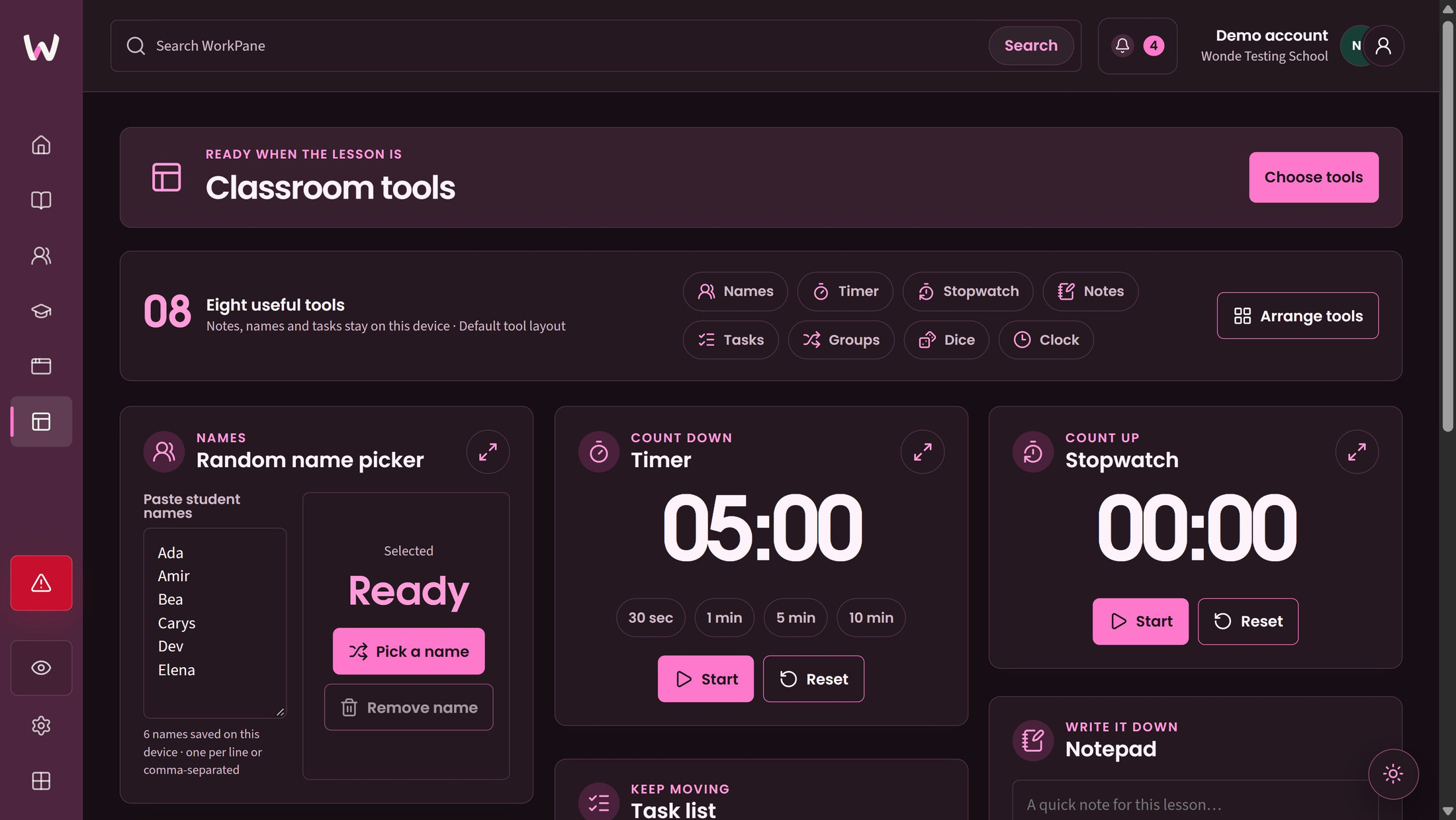
Reach the small tools that help a lesson run, arrange them for your day and show supported tools separately when that suits the classroom.
Choose random names or groups, a timer, stopwatch, notes, tasks, dice or classroom clock. Classroom lists, notes and tasks stay on the current device rather than becoming synced school records.
Choose up to four compact Quick widgets for Home. Your school and user preferences are saved separately from the device-local contents of the tools.
Save personal tool ordering and Home layouts, within school-required widget rules. Use non-drag ordering controls where preferred; layout choices do not change where tool contents are stored.
Open a supported classroom tool in a separate presentation window. The window shows the tool's supported content; browser window controls depend on the device.
Lists and notes remain on the current device. Use the school's approved pupil-record system for shared records.
Choose a numbered marker to look closer.
Choose a useful tool
Use a timer with clear controls
WorkPane
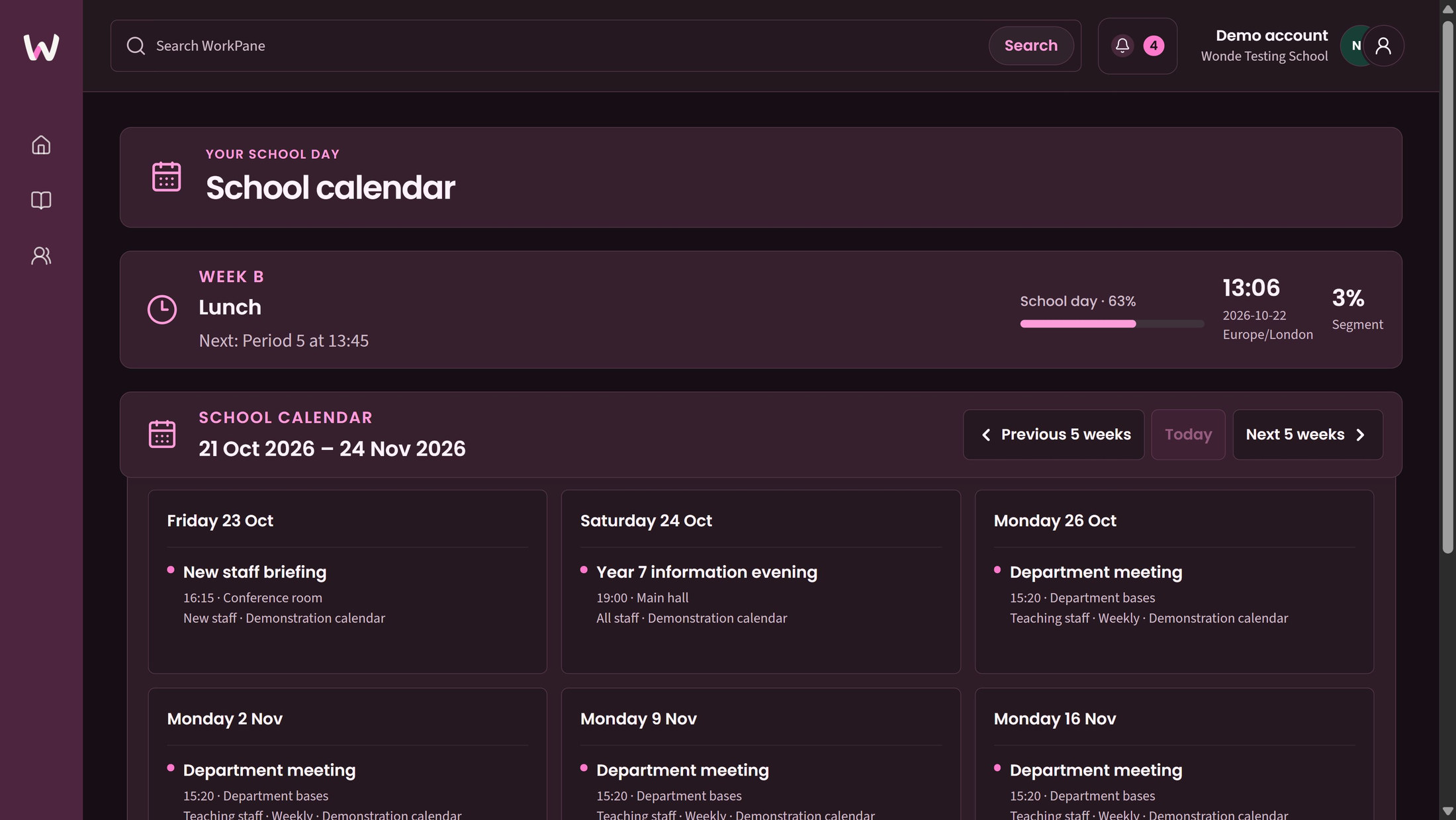
See the coming weeks in school context, with dated day changes and recurring activities kept distinct from optional connected appointments.
Ask which calendar sources are configured and whether the DAS appointment connection is ready to activate for your school.
Browse a clear five-week view with bounded previous, current and next navigation. Unavailable information stays clearly labelled so staff can see the limits of the current view.
Use school-local time, the standard day and retained dated exceptions. Shared school information and current source availability remain authoritative.
Configure bounded weekly series, exclude individual occurrences and reverse a cancellation. This does not promise live calendar-file imports or automatic reconciliation with a supplier calendar.
An optional DAS connection can show participant-only appointments without pupil identities or notes. Ask for a school-specific demonstration of appointments appearing, changing and being removed, including withdrawn access. Confirm checked setup and activation before use.
Connected appointments need the appropriate licences and permissions, a school-specific demonstration and confirmed activation. Calendar views do not automatically connect a supplier's calendar.
Choose a numbered marker to look closer.
Keep the date window visible
Each event keeps its time and audience
WorkPane
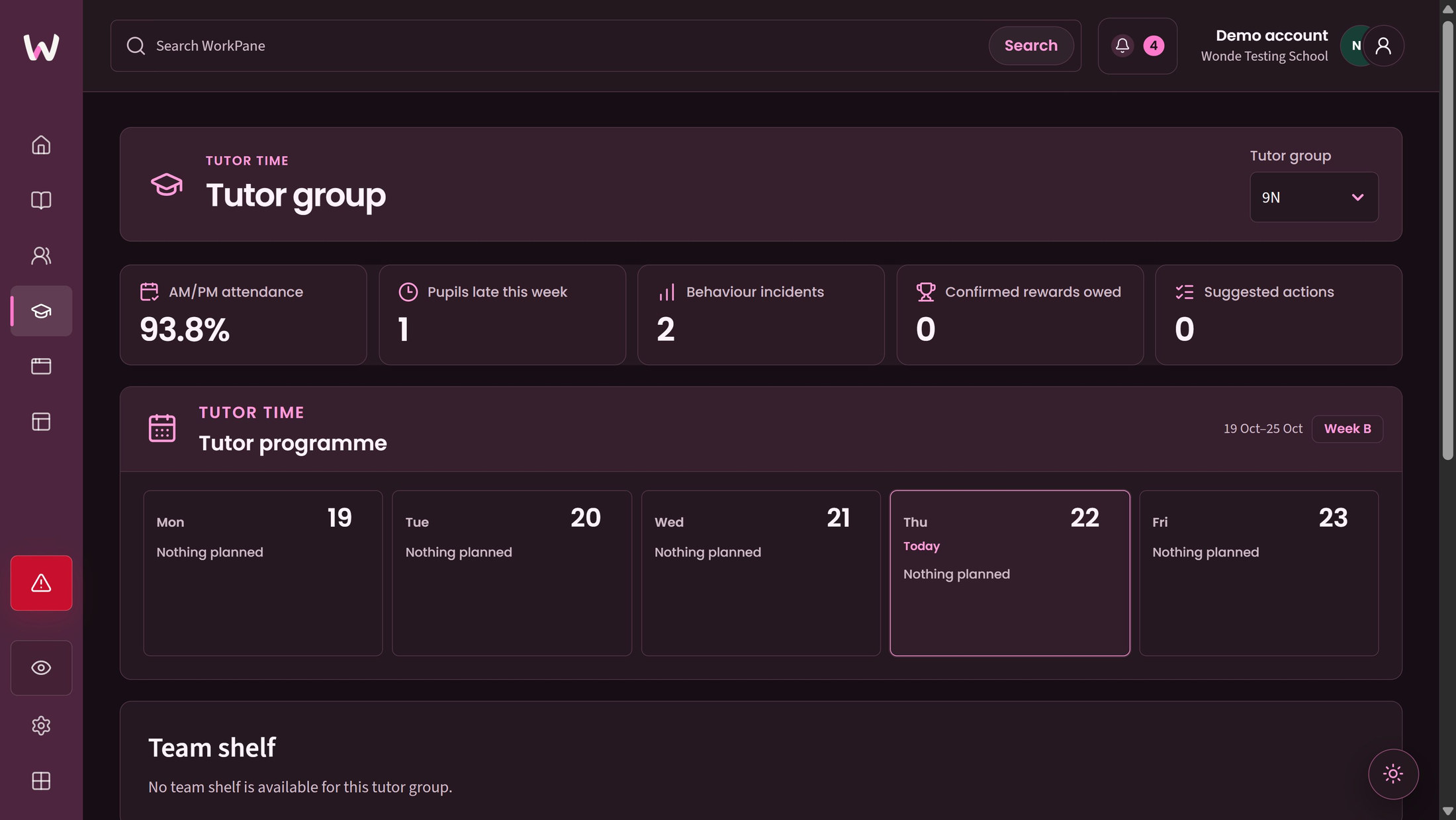
Bring verified tutor context and the published programme together, while keeping source facts, staff judgement and access responsibilities distinct.
Ask for a school-specific demonstration and checked setup before activating tutor connections or reward views; confirm availability of year-team options.
A verified assignment can bring source-labelled attendance and conduct into view, alongside HP Source's current period, scoring and reward context. Missing information stays unavailable; cumulative points do not become invented weekly totals.
School-configured recommendations remain advisory and need school approval for how their records are retained. Record Handled, Snooze or dismissal with Undo without changing source facts. A new week or escalation may surface an item again; missing thresholds do not create a judgement.
Publish ordered daily items with notes, links, recurrence and dated changes, following the current school calendar, A/B pattern and permissions.
Ask about availability of a year workspace bringing an authorised programme together with mapped notices and readable shelves. A programme responsibility does not grant Bulletin publishing rights or shelf membership.
Connected tutor views need school configuration, verified assignment and available sources. Recommendations support staff judgement; they do not make professional decisions or act in source systems.
Choose a numbered marker to look closer.
Keep the tutor group explicit
Review the summary before following up
WorkPane
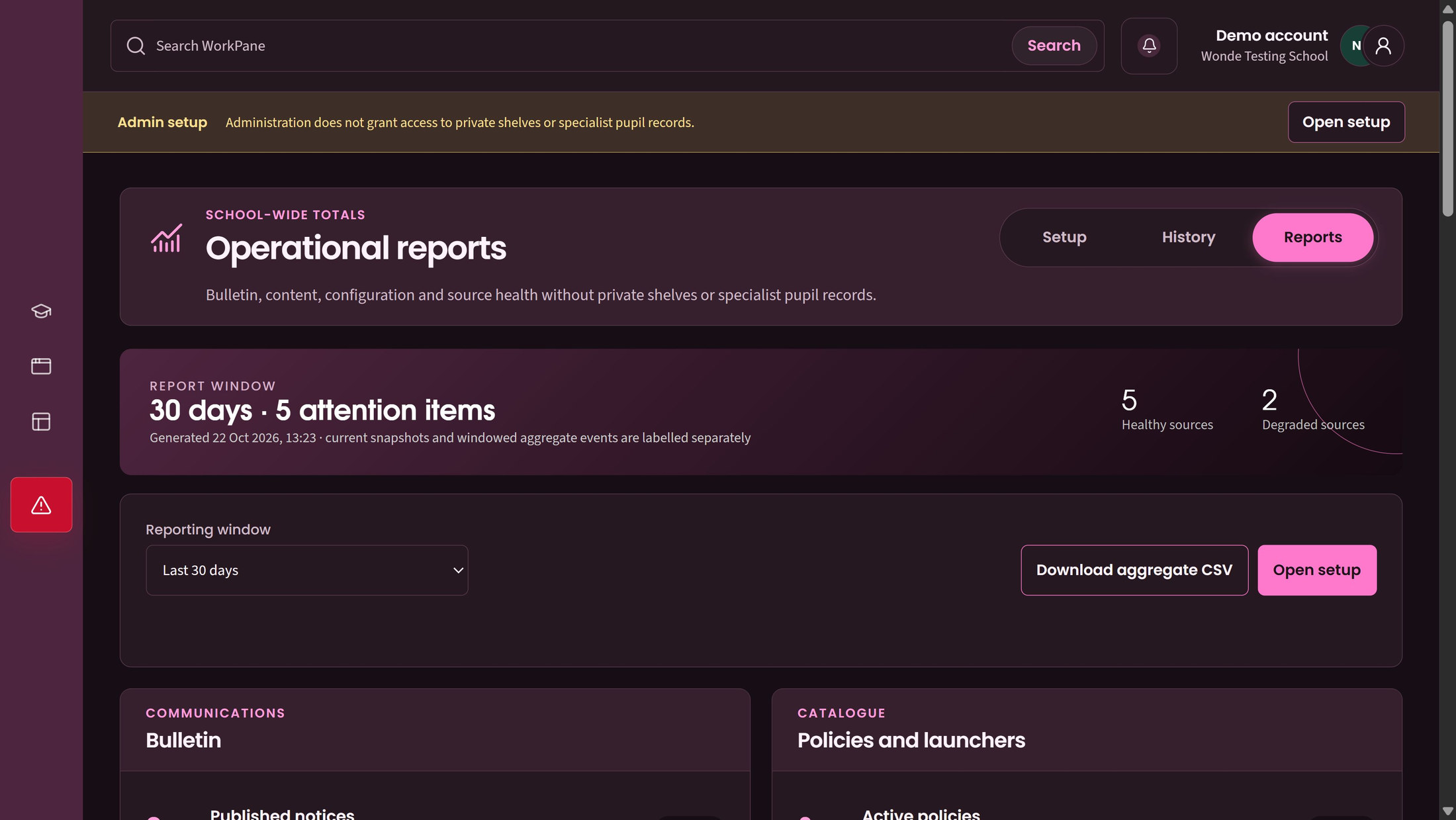
Give authorised school owners a practical way to review shared information and recover a sound configuration without opening private staff content.
Review notice lifecycle, app-catalogue checks, group review and configuration state, with bounded CSV export. Reports exclude private shelves, specialist pupil records and staff rankings.
Read safe summaries of earlier configurations and restore a validated version as a new version. History is retained rather than overwritten, giving the school a clearer record of what changed.
Restoring settings does not reactivate expired connections, credentials or approvals. Maintenance reports do not grant access to private shelf contents.
Choose a numbered marker to look closer.
Choose a reporting window
Separate healthy and degraded sources
Find the detail
Browse by school job, feature or the people using it.
Features 36
No matching features. Try a broader term or clear the filters.
Ask about approved configuration before relying on live weather information.
Bring permitted notices, shelves, school-selected apps and personal favourites together.
For school staff
Keep school-promoted launchers separate from each staff member chosen favourites.
For school staff, school administrators
Show purpose-limited work summaries from licensed source products and link back to the owning app.
For school staff, pastoral staff, school leaders
Dismiss one summary or the whole personal list and restore it later.
For school staff
Present a school-configured location with observation time and explicit source-health states.
For school staff, school administrators
Compose a notice with title, rich text, tags, priority and an intended audience.
For school staff, authorised publishers
Route submissions to a permitted reviewer who can approve or return with a private note.
For notice authors, authorised publishers
Build valid notice audiences from current same-school records and publishing grants.
For authorised publishers, school administrators
Retain separate current, scheduled, expired and archived notice states.
For authorised publishers, school staff
Configure default priority and audience, expiry limits and review or acknowledgement requirements.
For school administrators
Allow readers to record acknowledgement where the school rule or authorised publisher requires it.
For school staff, authorised publishers
Search readable notices, groups, shelves and school app resources together.
For school staff
Pin approved HTTPS or internal links with concise names, purpose cues and curated presentation.
For permitted shelf managers, school staff
Maintain school launchers, policy links, owners and review dates with an admin review queue.
For school administrators, school staff
Let permitted managers review link metadata and reorder the shelf without stale overwrites.
For permitted shelf managers
Keep a user personal resource links visible only to that user by default.
For school staff
Share links through active groups with delegated membership preview, confirmation and Undo.
For group owners, school staff, school administrators
Maintain a shelf for the two named people in an active staff relationship.
For mentors, line managers, school staff
Save each user preferred order of the shelves they currently have permission to see.
For school staff
Archive or restore groups and end relationships while retaining history.
For school administrators, group owners
Provide random name and group tools, timer, stopwatch, notes, tasks, dice and a classroom clock.
For teaching staff
Select up to four compact classroom tools for Home.
For teaching staff
Save personal ordering and school-owned required widget rules with non-drag ordering controls.
For school staff, school administrators
Open supported classroom tools in a separate presentation window.
For teaching staff
Ask which calendar sources are configured and whether the DAS appointment connection is ready to activate for your school.
Browse one clear five-week window with bounded previous, current and next navigation.
For school staff
Use school-local time, a standard day and retained dated exceptions.
For school administrators, school staff
Configure bounded weekly series with occurrence exclusions and reversible cancellation.
For school administrators
Receive verified DAS appointment updates into WorkPane with ordered, idempotent delivery.
For permitted casework participants
Ask for a school-specific demonstration and checked setup before activating tutor connections or reward views; confirm availability of year-team options.
Show a current assigned tutor group with source-labelled attendance and conduct information.
For verified internal tutors
Use HP Source current reporting period, scoring policy and due/review reward states in the tutor view.
For verified internal tutors
Evaluate explicitly configured rules for check-in, contact-home, detention consideration or praise.
For verified internal tutors, authorised year leads, school administrators
Record Handled, Snooze or dismissal with Undo while preserving source facts.
For verified internal tutors
Publish several ordered daily items with notes, links, date-specific changes and recurrence.
For authorised year leads, tutors
Join an authorised year programme with explicitly mapped team notices and readable shelves.
For authorised year leads, school administrators
Report aggregate notice lifecycle, catalogue review, group review and configuration state with bounded CSV export.
For authorised administrators, audit-capable staff
Review safe version summaries and restore a validated prior configuration as a new version.
For authorised administrators
Make it work for your school
Explore another app, check the complete annual price, or arrange a conversation about your school’s needs and Wonde MIS integration.